









Motorized workstations provide great flexibility throughout the workday, but an unresponsive control handset or a locked lift column can bring your routine to a halt. When an electric frame freezes, displays an error code, or refuses to rise, knowing how to reset standing desk control systems is usually all it takes to get things moving again. Most modern adjustable frames use smart control boxes designed to halt movement whenever they detect minor power fluctuations, uneven leg resistance, or anti-collision triggers.
Rather than assuming a mechanical failure, running a simple recalibration routine will often clear control box memory faults and sync the motorized legs safely. Below is a complete guide to diagnosing lift issues, performing universal resets, and keeping your workstation operating smoothly.
Understanding Why Standing Desks Freeze or Require a Reset
Electric sit-stand desks rely on synchronized communication between the control box, the keypad, and the internal motor encoders inside each lifting column. If the control box detects any discrepancy in voltage, pulse count, or resistance between the legs, it engages a safety lockout to prevent structural twisting or motor strain.
- Power interruptions: Unplugging the desk, sudden power surges, or momentary electrical drops can clear the controller's positional memory.
- Anti-collision sensitivity: Modern desks feature gyroscopic or current-sensing anti-collision features that halt travel if the tabletop bumps into a windowsill, an armrest, or a taut cord.
- Uneven leg synchronization: In dual-motor systems, minor discrepancies in travel speed can cause one column to sit slightly higher than the other, prompting a safety stop.
- Motor duty-cycle limits: Continuous cycling up and down within a short window can activate thermal overload protections, temporarily disabling upward travel until internal components cool.
Universal Step-by-Step Standing Desk Reset Procedure
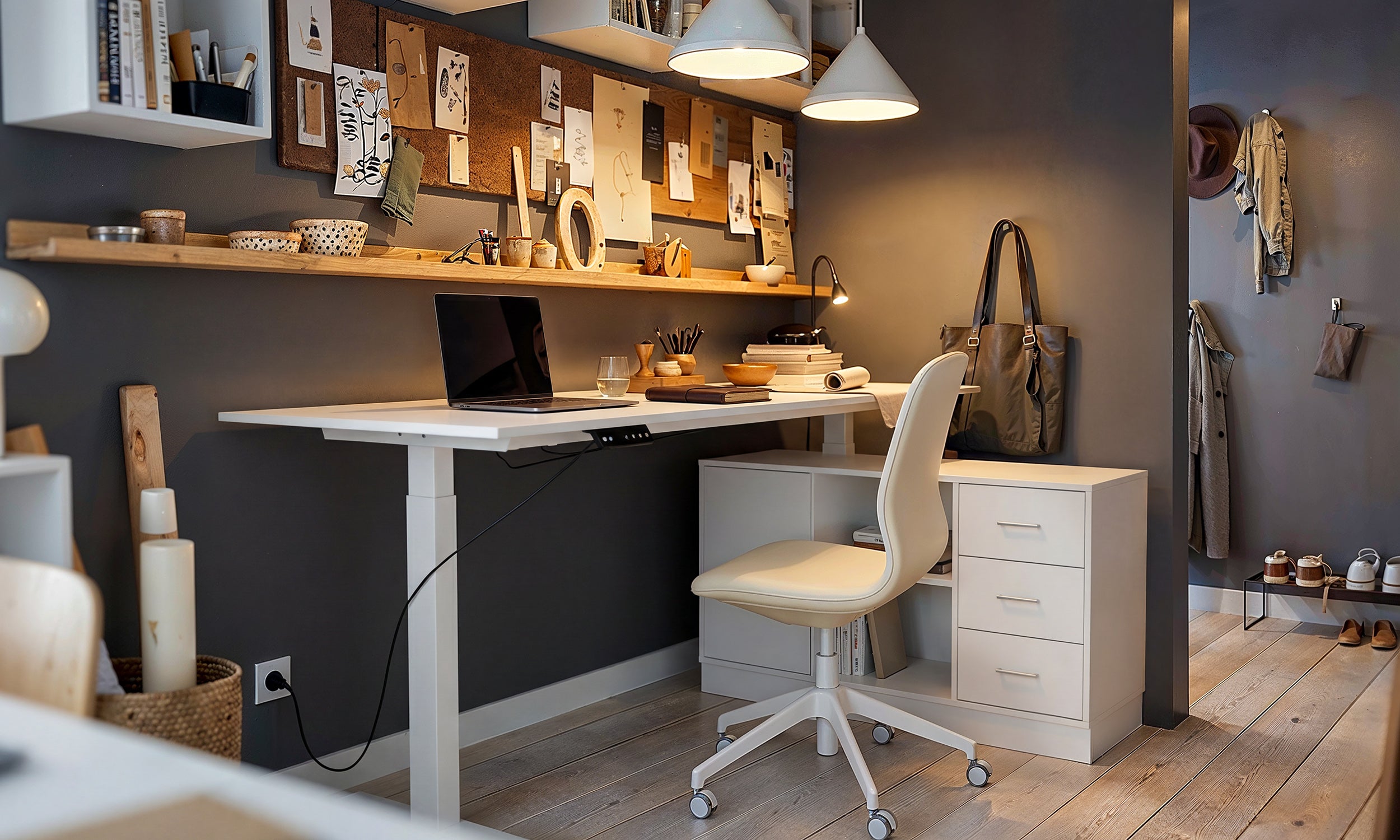
While specific keypad displays vary across manufacturers, the fundamental reset routine remains consistent across the vast majority of motorized frames. Modern options like an adjustable height standing product integrate responsive control boxes that allow straightforward recalibration right from the standard keypad.
- Clear the travel path: Remove any rolling chairs, trash bins, under-desk storage, or items hanging from monitor arms that could block downward travel.
- Check electrical connections: Ensure the power cord is firmly seated in the wall outlet and the central control box under the desktop. Verify that all motor cables and keypad leads are snapped securely into their ports.
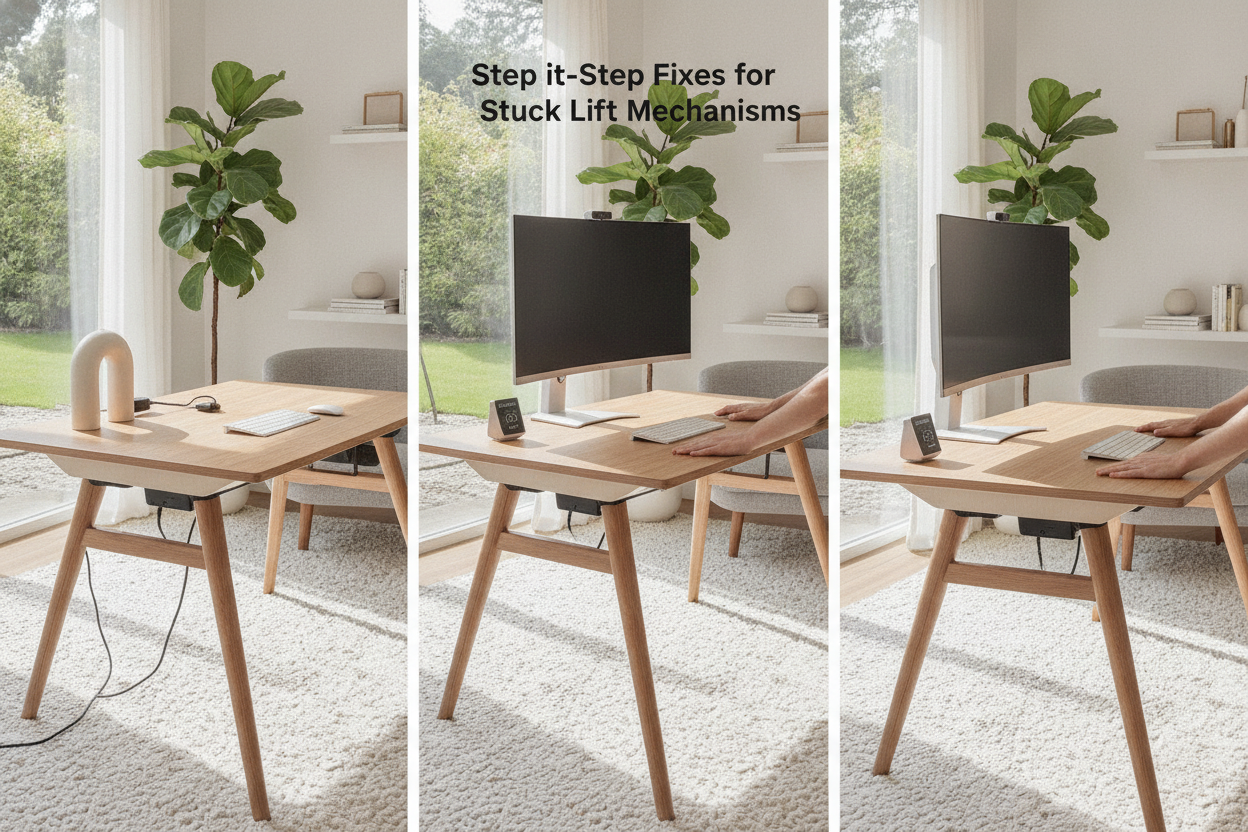
- Press and hold the down button: Press and maintain continuous pressure on the down arrow key. The desk will lower until it reaches its lowest physical baseline.
- Hold until confirmation: Continue holding the down button for several seconds after the desk reaches the bottom. On digital keypads, the display will typically flash a reset code, show a low height reading, or emit a brief chime. The frame may perform a subtle downward dip and rebound upward slightly to confirm that the zero point has been saved.
- Release and test: Release the button, then tap the up arrow to verify that both lifting columns ascend evenly through their full travel range.
Troubleshooting Common Symptoms: Stuck Up, Stuck Down, or Moving One Way
When standard calibration does not immediately solve the issue, analyzing the desk's specific behavior can help isolate the root cause.
The Desk Only Goes Down but Won't Go Up
If your frame lowers during a reset but refuses to climb, the control box is likely detecting an overload condition or an active anti-collision fault. In many designs, downward travel is permitted as a fail-safe to let users reach lower maintenance positions, while upward movement is restricted. Lightening excessive desktop weight or checking for snagged power strips under the desktop often resolves this symptom.
Keypad Unresponsive or Flashing Reset Indicators
A flashing display or unresponsive touch panel usually indicates an interrupted initialization sequence. Unplug the workstation from the wall for a few minutes to allow residual power inside the capacitors to fully dissipate. Plug the unit back in and immediately execute the long-press downward reset procedure without pressing other memory presets first.
Motor Clicking Without Movement
A faint click coming from the control box followed by silence suggests that the internal relays are triggering, but power is not reaching the drive spindles. Inspect the motor connection cables for bent pins, loose housings, or pinch points along the crossbeam channel.
Physical Checks: Resolving Uneven Leg Columns and Mechanical Binding
Broad workstations, such as a large height adjustable standing product, distribute considerable surface area and accessory weight across dual lifting columns. If one side encounters physical resistance, the columns can become misaligned.
- Leveling foot adjustment: Check that the adjustable glides on the bottom of each foot make firm, level contact with the floor. An unlevel floor can force the frame out of square, causing the telescoping stages to bind internally.
- Single-motor drive rod engagement: If your desk uses a single motor with an external hex drive rod connecting the slave leg, verify that the rod has not slipped out of its locking collar. If disconnected, only the motorized leg will move, causing severe tilt.
- Gearbox binding: If one leg remains noticeably higher during a reset, lower the desk fully, loosen the desktop mounting fasteners slightly to relieve structural tension, perform the baseline reset, and then retighten the frame hardware evenly.
Cable Management and Weight Distribution: Preventing Repeated Motor Errors
Many recurring lift failures stem from environmental factors rather than internal hardware faults. Organizing your workspace peripherals and balancing loads prevents false sensor triggers.
Offloading heavy paperwork, hardware towers, or bulky desktop organizers to nearby adjustable collection units keeps the lift surface balanced and prevents motors from working unevenly against asymmetric loads.
- Provide cable slack: Always bundle computer power leads, monitor cords, and accessories with sufficient loop slack to accommodate the desk's maximum extended height without pulling on wall plugs.
- Center heavy equipment: Mount heavy dual-monitor arms and CPU brackets as close to the central support beam or evenly between the two lift legs to maintain balanced torque.
- Check collision clearances: Maintain adequate clearance between the edge of your desk and adjacent walls, cabinetry, or window sills to avoid accidental anti-collision stops during upward travel.
When to Contact Support vs. Routine Maintenance
Most motorized desk issues resolve through standard downward resets and cord checks. However, if a column emits harsh grinding noises, if the control box produces persistent error codes despite multiple power cycles, or if one leg shows no electrical response while the other functions, internal component replacement may be needed. Keeping track of the exact error codes displayed on your handset will assist customer support in determining whether a replacement control box, cable harness, or motor leg is required.



Dejar un comentario
Este sitio está protegido por hCaptcha y se aplican la Política de privacidad de hCaptcha y los Términos del servicio.