






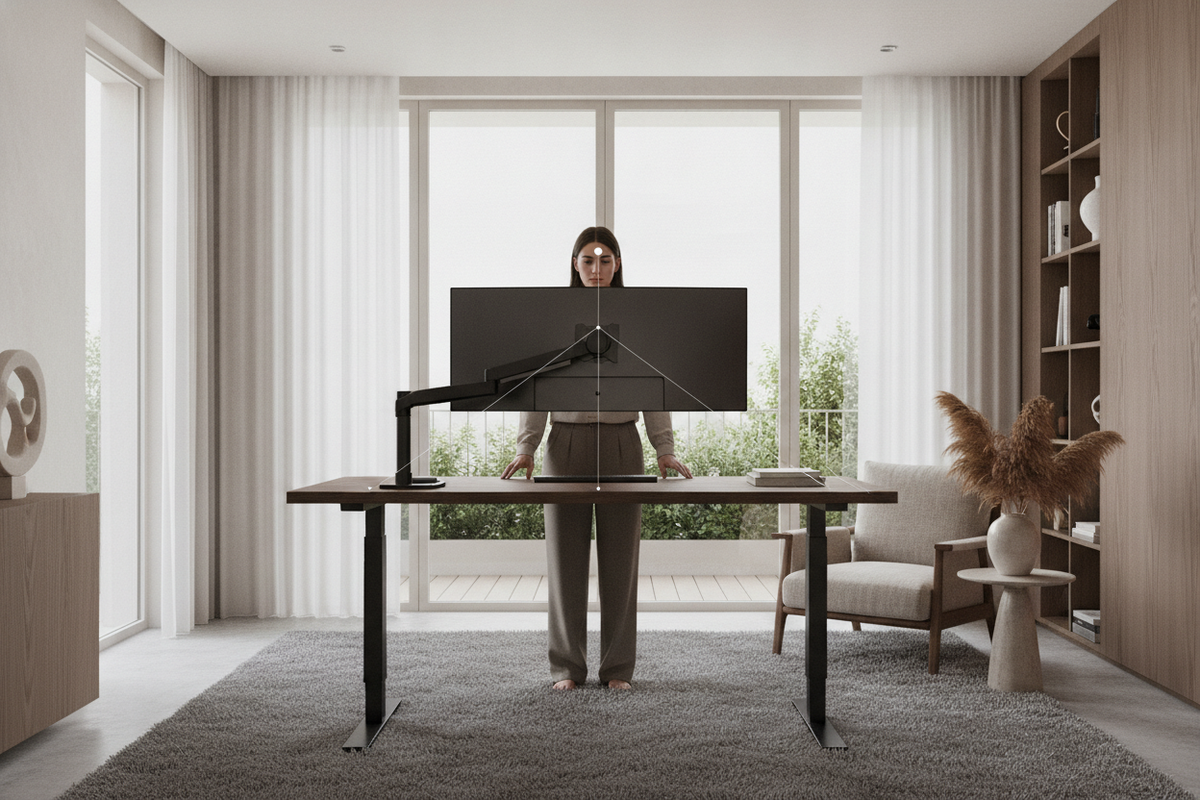
Introduction: The Geometry of Eye-Level Display Alignment
Creating an active workspace involves more than simply moving between seated and upright postures throughout the workday. Achieving proper monitor height for standing desk environments requires understanding how the eyes naturally interact with digital displays across shifting physical positions. When a workstation is adjusted for standing, your overall body geometry changes—from the tilt of the pelvis to the resting line of the neck and shoulders. Failing to calibrate your screen elevation to these dynamic postures can lead to unnecessary visual fatigue and awkward neck articulation.
A thoughtful ergonomic configuration coordinates the interaction between desktop surface elevation, display mounting hardware, and viewing distance. By viewing the screen as an integrated element of your overall furniture architecture rather than a static fixture, you can maintain consistent focus and physical ease across every transition.
The Core Alignment Rule: Eye Line Relative to the Screen Top
The foundational principle for vertical display positioning centers on the relationship between your resting eye level and the upper border of the visual area. When standing naturally with your shoulders relaxed and head level, your horizontal line of sight should align closely with the top bezel or upper portion of the screen. This positioning takes advantage of human visual ergonomics, where the resting gaze naturally angles slightly downward.
Positioning a screen too high forces the user to tilt the chin upward, creating tension through the back of the neck and upper spine. Conversely, positioning the screen too low causes the neck to bow downward, increasing spinal load over extended sessions. By ensuring the primary work zone on your display rests within a comfortable downward gaze arc, you maintain a balanced head posture that feels natural throughout long working blocks.
- Horizontal Sightline: Align your neutral gaze with the top edge or upper third of the active screen panel.
- Focal Distance: Set the screen at roughly an arm's length away, adjusting forward or backward until text remains clear without leaning.
- Screen Tilt: Introduce a slight upward tilt to the monitor panel so the surface stays perpendicular to your downward sightline.
Sitting vs. Standing Biomechanics: Managing the Height Discrepancy
One common challenge in height-adjustable setups is that the vertical distance between your elbows and your eyes often differs between seated and upright postures. When sitting, your spine compresses slightly and your pelvis rests on a cushioned seat pan. When standing, your torso extends, weight distributes across your feet, and your posture naturally elongates. Consequently, a fixed distance between the desktop and the monitor that feels comfortable while sitting may feel slightly misaligned once you rise.
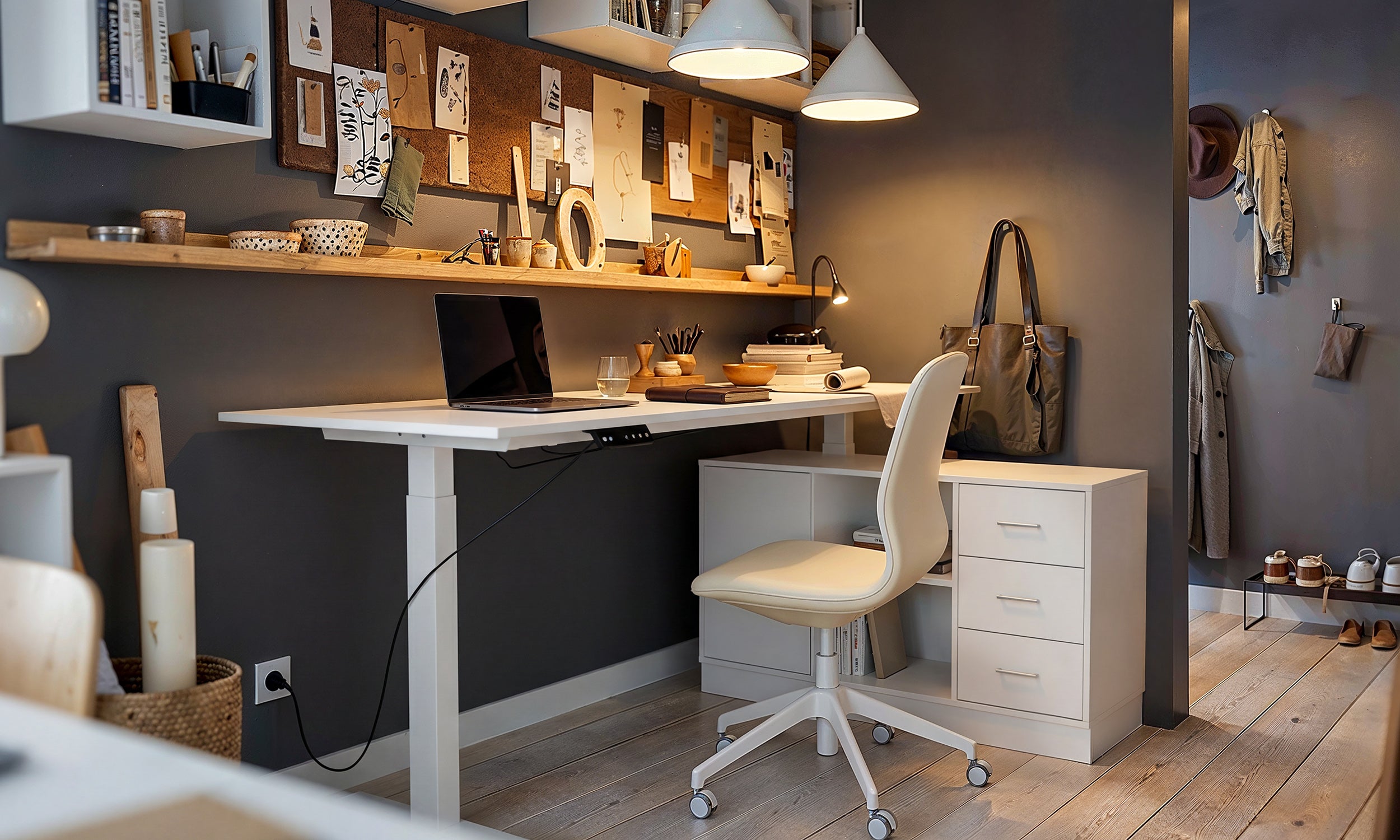
To manage this posture shift, many professionals pair a versatile height standing desk product with easily adjustable screen mounts. Using precise height presets helps establish repeatable reference points for both modes. When transitioning to standing, adjust the primary desk surface to match a comfortable forearm angle, then make slight adjustments to your screen angle or mount elevation to preserve your natural sightline.
Mounting Methods: Desktop Risers, Articulating Arms, and Built-In Shelves
Choosing the right hardware to support your screen depends on your functional needs, desk depth, and aesthetic preferences. Different support structures offer varying levels of flexibility and stability:
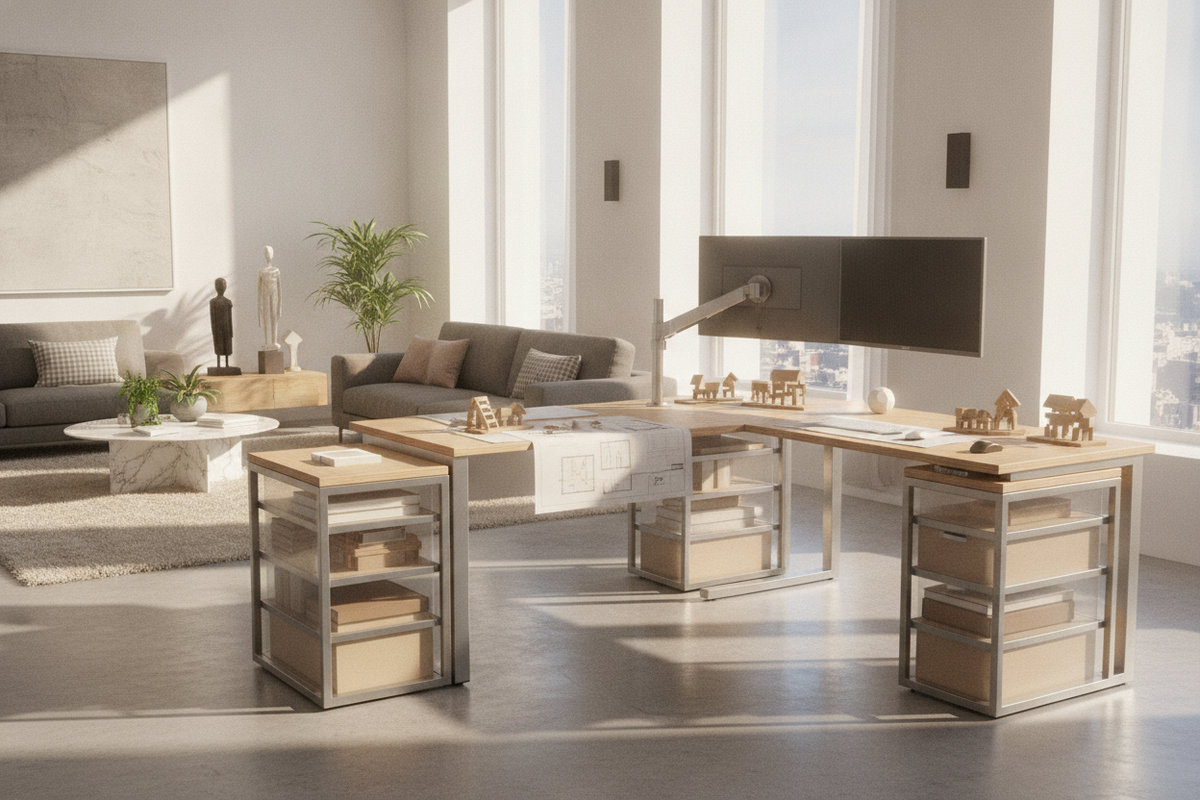
- Articulating Monitor Arms: Gas-spring or mechanical arms clamp to the desk edge and offer independent height, tilt, and depth adjustments. They excel at accommodating the slight vertical variations between seated and standing positions while freeing up valuable surface space.
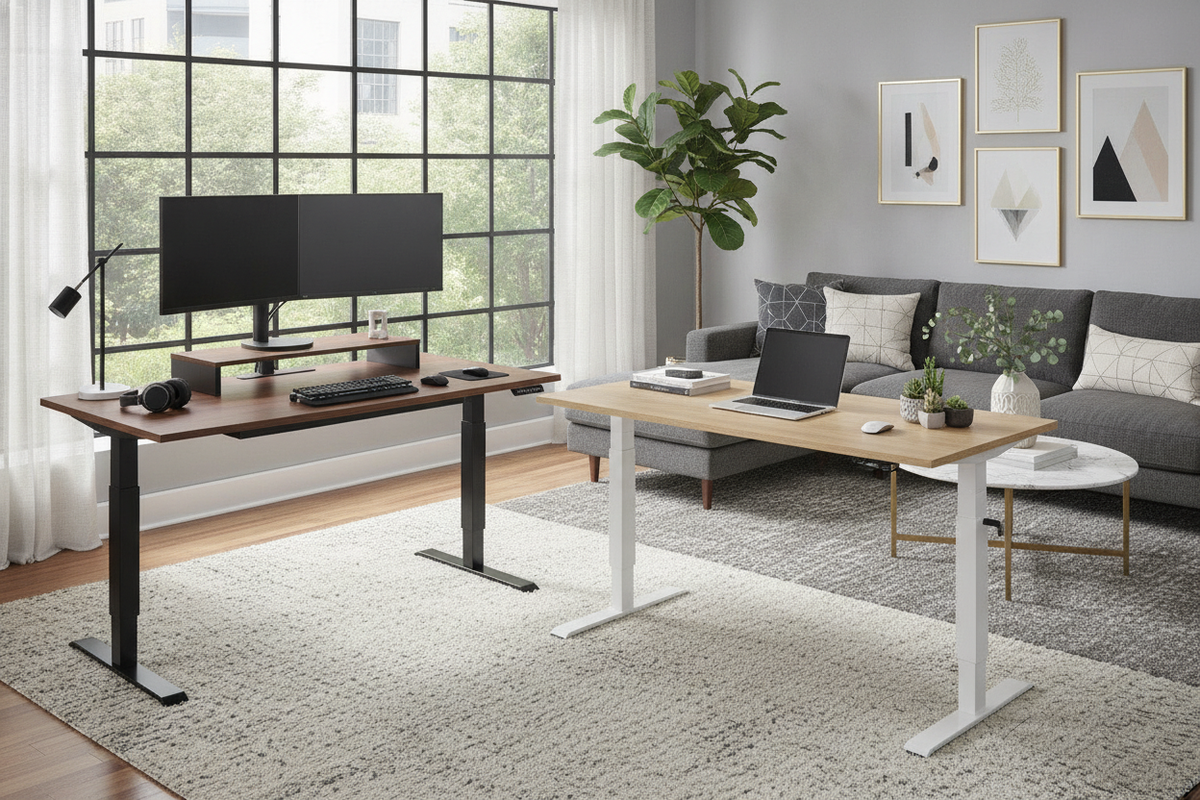
- Stationary Desktop Risers: Solid wood or metal monitor stands elevate displays to a fixed height while providing convenient storage cubbies underneath for notebooks, keyboards, and accessories.
- Integrated Tiered Shelving: Desks with built-in upper tiers offer a cohesive architectural appearance, providing dedicated raised zones for monitors alongside integrated storage.
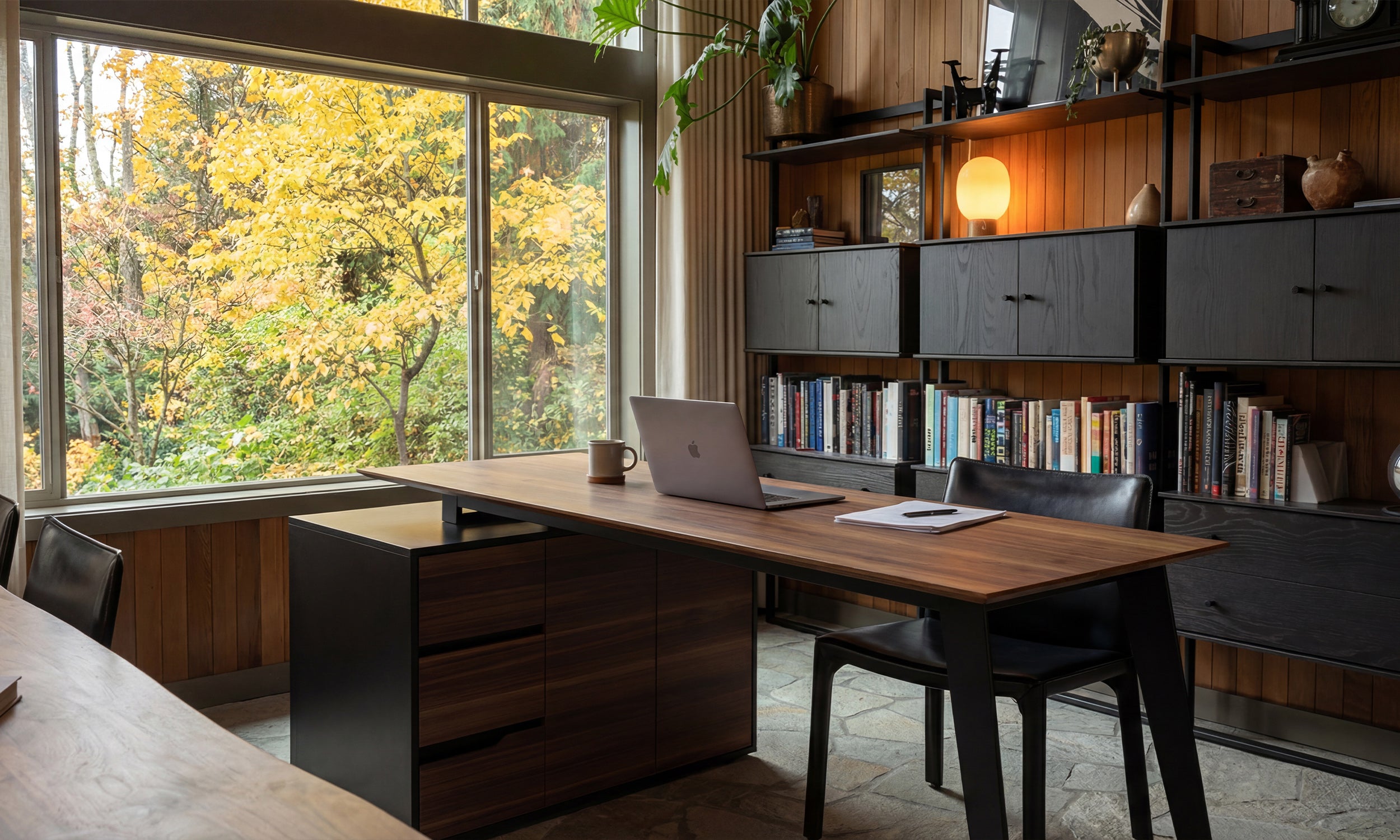
For spacious executive configurations, pairing large-scale surfaces like a height standing desk product with dedicated monitor arms ensures both ample equipment support and expansive layout freedom.
Multi-Screen and Laptop Setup Considerations
Workstations that incorporate multiple monitors or combine a laptop with an external display require careful horizontal and vertical coordination to prevent asymmetric neck movement. For dual-monitor environments, decide whether your workflow relies on a primary focal screen with a secondary reference display, or two screens used with equal frequency.
If you rely primarily on one display, center it directly in front of your keyboard and place the secondary monitor adjacent to it, angled slightly inward to preserve a consistent viewing arc. When using two equal-sized screens side by side, align their center seams directly in front of you and angle both inward in a subtle curve. For integrated mobile workstations, consulting a specialized desk monitor guide can help you elevate your laptop screen to match the height of your main monitor using dedicated stands or dual-arm mounts.
Cable Routing, Desktop Stability, and Spatial Integration
The movement of an adjustable workstation requires thoughtful attention to cable management and mechanical stability. When displays rise with the desk surface, video and power cables must have sufficient slack along the adjustment path to prevent snagging or disconnecting. Securing cables into organized routing spines or under-desk trays protects delicate ports and keeps the aesthetic clean.
Additionally, distribute display weight evenly over the frame to minimize screen vibration during typing or height transitions. Following practical tips from a cohesive standing desk guide allows you to combine structural stability, wire concealment, and balanced display placement into a calm, functional home office environment.

Leave a comment
This site is protected by hCaptcha and the hCaptcha Privacy Policy and Terms of Service apply.