






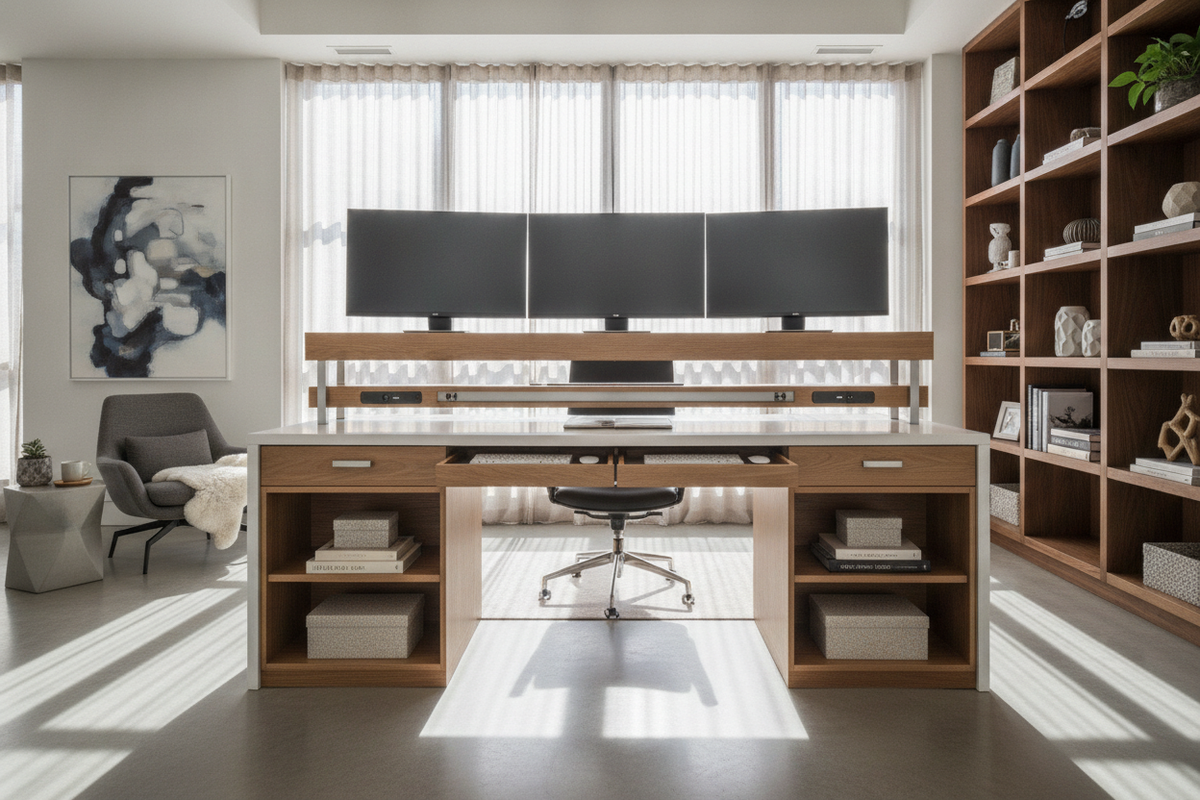
Understanding Multi-Monitor Mounting Typologies
Expanding your visual workspace with multiple screens changes how you interact with your desk. Finding the right monitor stand for multiple monitors requires balancing mechanical support with furniture design. Multi-screen configurations generally rely on three foundational structures: freestanding weighted desktop stands, edge-mounted desk clamps, and integrated through-desk grommet mounts.
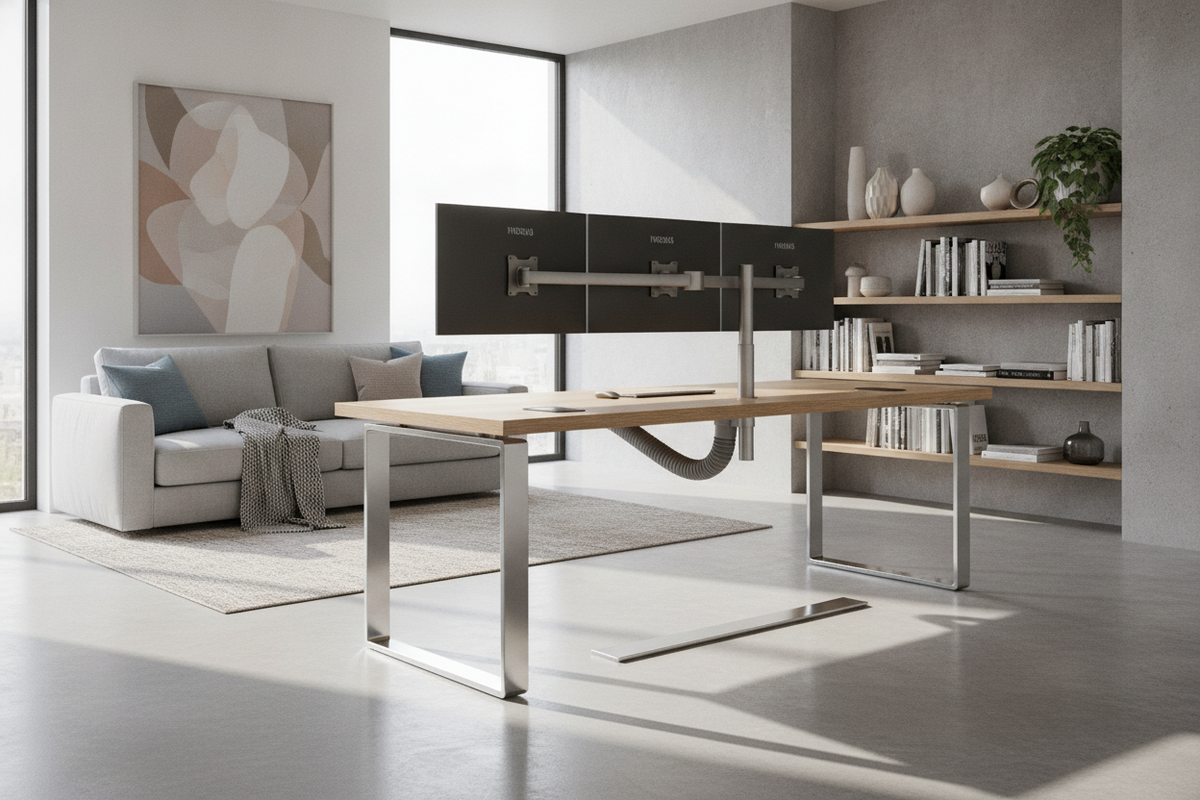
A freestanding multiple monitor stand for desktop setups utilizes a heavy steel or cast metal footplate that sits directly on the desktop surface. Because it requires no drilling or perimeter edge clamping, this style works well when desks feature rear modesty panels, perimeter frames, or fragile edge profiles. For similar considerations regarding non-invasive bases on large screens, reviewing a stand mount guide can clarify how wide footprints manage vertical weight without wall anchors.
When users want maximum under-screen clearance, mechanical clamp systems become appealing. A dual-arm multi-monitor mounting systems layout or a heavy-duty 2 monitor bracket attaches to the rear edge of the desktop, elevating the panels above the surface. These configurations range from crossbar rail mounts, which lock displays side by side on a shared horizontal beam, to fully articulated gas-spring arms that allow each screen to tilt, pan, and rotate independently. Selecting between a fixed crossbar and independent arms depends on whether your screens share identical dimensions or require varied angles throughout the working day.
Desktop Depth and Surface Clearance Considerations
A frequent challenge when installing a multi display mount is unexpected loss of usable desk depth. Modern flat and curved displays require adequate focal distance to remain comfortable during extended work sessions. When an articulated mounting arm bends backward to position displays edge to edge, the elbow joints often extend beyond the rear boundary of the desktop.
If your desk sits directly against a wall, those extended mechanical joints collide with the drywall, forcing the screens forward toward your seating position. In shallow workspaces, this can push the displays too close to your eyes, consuming space intended for keyboards, notebooks, and reference documents. A fixed-depth rail system or a compact monitor multi stand maintains a tighter profile against the rear boundary, preserving valuable working depth on standard desk surfaces.
Lateral wingspan is equally critical. Dual and triple displays create an expansive horizontal footprint that can overhang the sides of compact tables. As screens turn inward to form a comfortable panoramic curve, the outer bezels swing forward, which claims surface territory near the desktop edges. Mapping these spatial zones before installation ensures your screens remain contained within the footprint of the workstation.
Surface Integrity, Materials, and Weight Distribution
The structural composition of your desktop plays a decisive role in whether it can safely host a heavy multi monitor bracket. Clamping setups concentrate the combined weight of several displays, mounting columns, and heavy metal arms into a small surface patch, creating intense downward pressure on the top surface and upward tension beneath the desk lip.
Solid hardwood, birch plywood, and thick high-density composite panels generally tolerate clamping forces without distortion. In contrast, hollow-core surfaces constructed with interior honeycomb paper cores can compress or deform under concentrated point loads. When securing a mount for multiple monitors to manufactured panels or thinner tops, adding structural reinforcement plates spreads the clamping force across a broader surface area, reducing localized strain.
Grommet mounting offers an alternative when edge clamping is impractical. By passing a threaded central bolt through an existing cable port or drilled opening, grommet fixtures anchor downward with balanced surface contact. If you prefer to avoid drilling into furniture, a balanced freestanding base distributes weight across its padded undercarriage, protecting delicate veneers and painted finishes from stress marks.
Storage Architecture: Reclaiming Lost Desk Real Estate
Elevating screens off the desk surface creates open territory beneath the bezels, yet an expansive multi-screen array can visually overwhelm an open room. Thoughtful surrounding storage restores equilibrium to the workspace by keeping daily accessories, desktop peripherals, and cable bundles neatly organized.
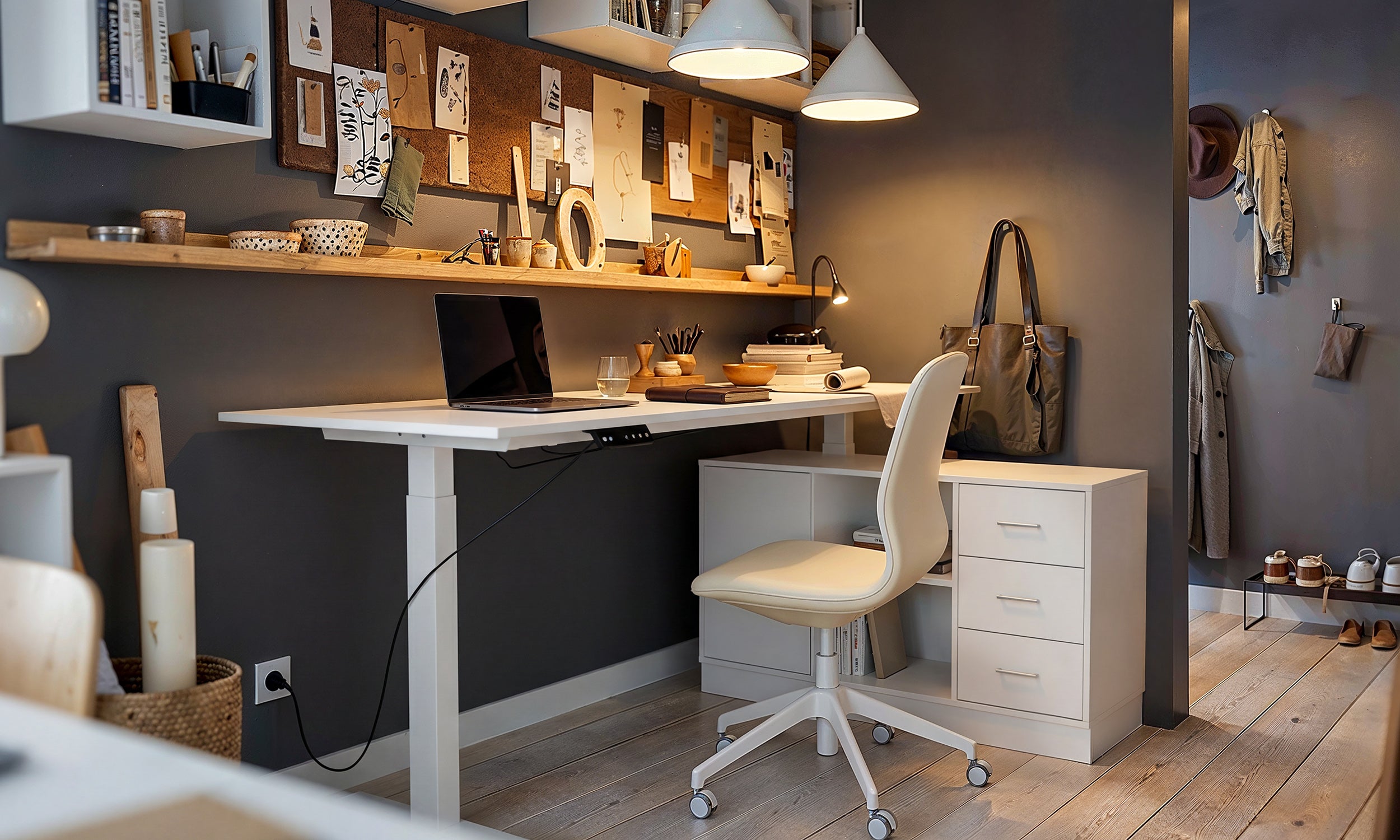
To support a wide desk layout, pairing the workspace with dedicated secondary storage removes clutter that would otherwise collect under your displays. Incorporating a multi display product nearby provides deep drawers and open shelving to tuck away computer peripherals, external hard drives, and office supplies. Moving non-essential items away from the main desk gives your elevated screens room to breathe.
For rooms where floor area is constrained, vertical wall storage helps balance the horizontal presence of wide dual-screen workstations. Utilizing a mount display product on an adjacent wall introduces partitioned cubbies for stationery, reference books, and decorative accents. Elevating storage alongside elevated displays keeps the immediate desktop clear for typing, writing, and active daily tasks.
Assembly, Cable Routing, and Ergonomic Alignment
Proper installation of multi-display hardware requires steady, methodical adjustments to achieve smooth movement and clean alignment:
- Tension Adjustment: Articulated arm brackets rely on internal mechanical springs or gas cylinders. Adjust the counterbalance tension screws until each arm holds its display stationary without drifting downward or springing upward.
- Cable Slack Management: Route display cables and power cords through integrated channels on the mounting column and arm segments. Ensure sufficient cable slack near articulation joints so screens can tilt or rotate without pulling connections taut.
- Seamless Bezel Alignment: Position primary screens directly in your central sightline, angling secondary displays inward along an arc to maintain a consistent viewing distance from edge to edge.
Taking the time to calibrate pivot stiffness and alignment early prevents uneven sag and keeps the visual horizon level across your workspace.
Workspace Typologies: Matching Mounts to Your Daily Workflow
Every room presents unique architectural and organizational demands. Tailoring your mounting style to your room layout creates a functional setup that complements the surrounding interior design.
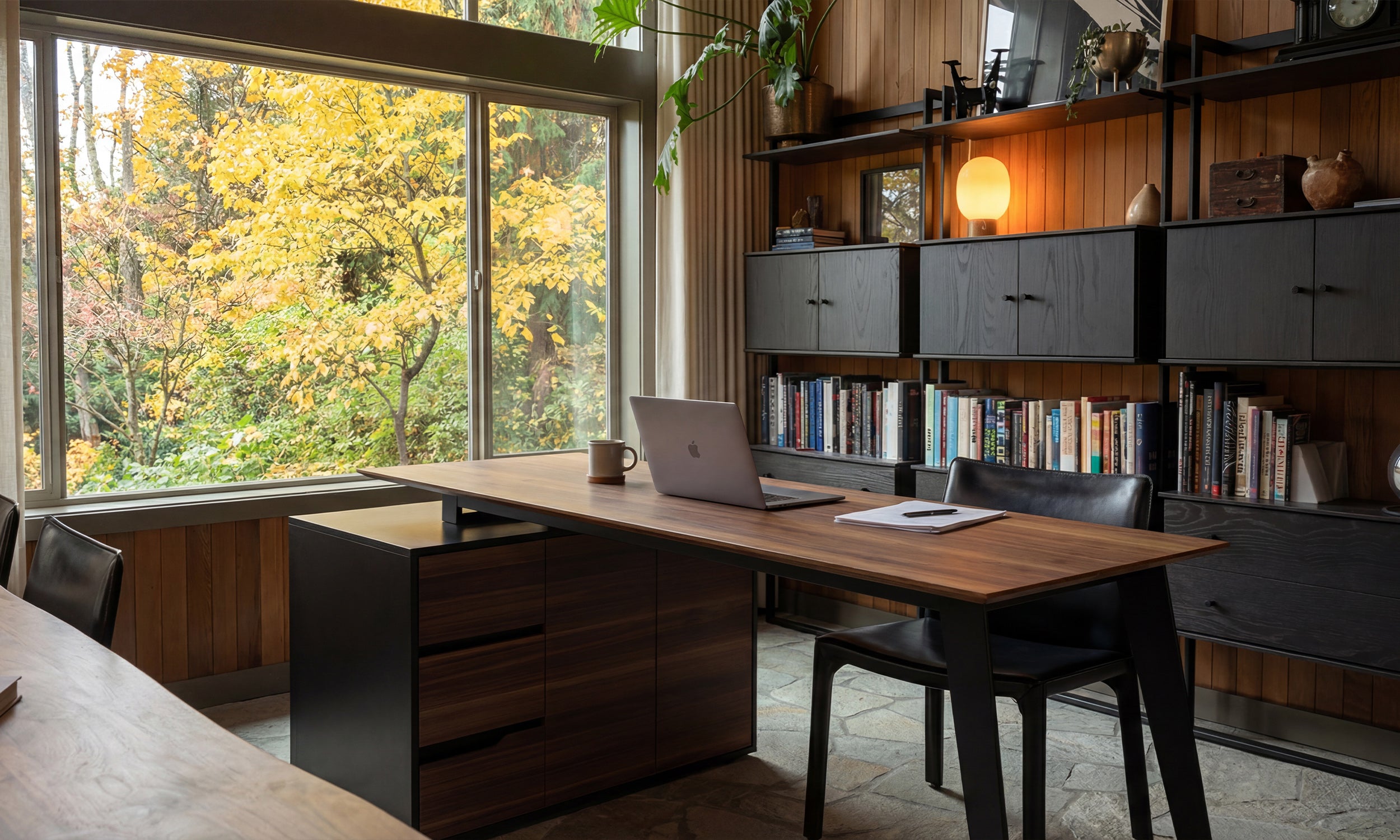
In dedicated home offices with generous floor plans, an articulated dual-arm bracket centered on a freestanding executive desk delivers clean sightlines and flexible positioning. The openness around the desk perimeter accommodates extended arm movements without wall contact. In shared spaces, such as multipurpose guest rooms or living room study corners, a subtle, low-profile stand helps prevent high-tech equipment from dominating the room. Exploring a stand display guide provides helpful ideas for integrating screen-centric furniture into broader residential spaces.
For compact study nooks, a fixed-height desktop riser or a vertical stacking mount keeps multiple displays arranged along an upward axis rather than an expansive horizontal curve. By aligning mounting hardware with desk dimensions, surface materials, and nearby storage, you establish an organized, comfortable workspace built for long-term productivity.

Dejar un comentario
Este sitio está protegido por hCaptcha y se aplican la Política de privacidad de hCaptcha y los Términos del servicio.