






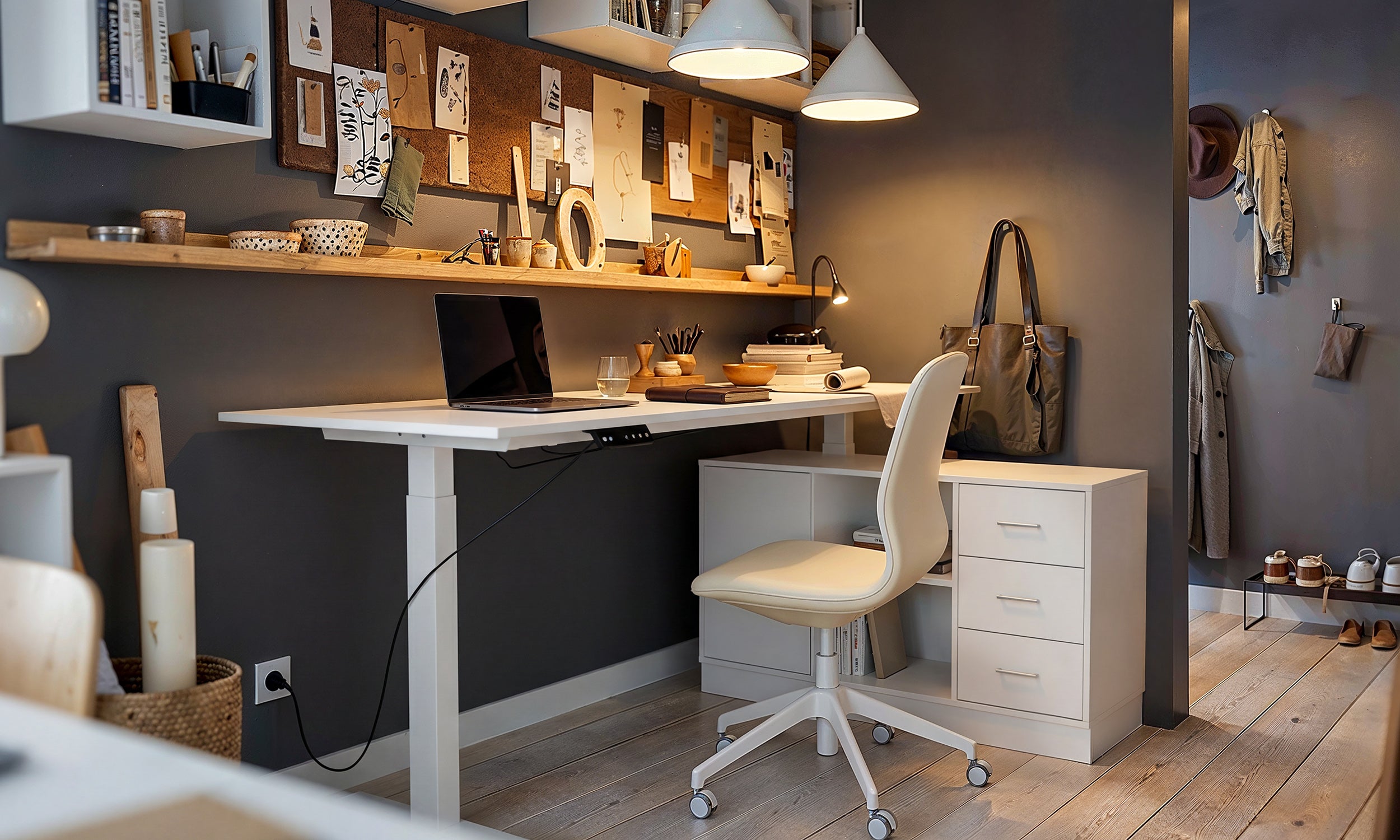



Height-adjustable office desks rely on synchronized motorized systems to transition smoothly between seated and standing elevations. When a lift column encounters unexpected resistance, experiences a power disruption, or detects an uneven tilt across the frame, the central control box often activates a protective state. In this mode, the desk typically ignores upward commands and only permits travel toward the floor. Executing a proper poppin desk reset re-establishes the baseline reference points within the controller, allowing the motor electronics to read frame elevation accurately once again.
Understanding the Downward-Only Lockout in Adjustable Desks
Motorized sit-stand workstations utilize electronic control modules that monitor revolutions or electrical current across each lifting leg. If one motor finishes a movement cycle slightly out of alignment with the opposite side, the controller initiates a downward-only lockout to protect structural joints and prevent tabletop twisting. Exploring an informative standing desk resource illustrates how modern motorized frames depend on precision leveling across their crossbars to ensure smooth travel.
A desk may suddenly enter this recalibration state for several common reasons:
- Brief power interruptions: A sudden outage or an unplugged wall cord resets volatile memory in the handset, clearing the established height baseline.
- Obstruction detection: If the desktop contacts an under-desk filing cabinet, a tight cable, or a windowsill during motion, the anti-collision sensor triggers an emergency stop.
- Cable dislodgement: Slight movement can loosen the connector pins linking the leg motors to the central control module, triggering a protective fault code.
- Uneven surface loading: Concentrating heavy office gear on one corner can cause slight friction variances between lifting columns.
When the electronic system becomes desynchronized, running a complete calibration cycle to the lowest mechanical stops re-aligns the pulse counts between both motorized columns.
Step-by-Step Poppin Standing Desk Reset Procedure
Executing a poppin standing desk reset is a straightforward mechanical recalibration designed to bring the desk to its lowest physical plane. Before initiating the sequence, inspect the area directly beneath the tabletop, the lower support frame, and the foot glides to confirm that nothing will block the desk as it descends.
- Clear the travel path: Remove any rolling file cabinets, wastebaskets, or desktop items that overhang the frame and could create contact during the downward run.
- Engage the down button: Press and hold the downward arrow button on the control handset. The desk will begin descending toward its minimum mechanical stop. Continue holding the button even if movement pauses briefly.
- Reach the mechanical baseline: Keep holding the downward button until the frame reaches its absolute lowest point.
- Trigger the reset confirmation: Once at the bottom, release the button momentarily, then immediately press and hold the downward button again for several seconds. In many instances, holding the button continuously through the descent will also trigger the reset.
- Observe the visual or mechanical signal: The lifting columns will typically give a subtle mechanical dip, tap the bottom stop, and rebound slightly upward. On handsets equipped with a digital readout, the display may shift from a reset prompt to a numerical height figure.
- Verify upward travel: Release the button, wait a few moments, and press the upward arrow. The desk should now lift evenly without hesitation.
If the handset is unresponsive or displays persistent error text prior to descending, perform a clean power cycle. Disconnect the main power plug from the wall outlet, wait for the residual charge in the control module to dissipate, reconnect the power firmly, and reattempt the reset sequence.
Hardware and Cable Clearance Checks Before Resetting
Electronic recalibration cannot overcome persistent physical tension or disconnected wiring. When troubleshooting recurring lockouts, take time to inspect the physical assembly underneath the surface. Consulting a practical standing desk guide highlights how poor cord management and hidden obstructions frequently masquerade as electrical failures.
Start by examining the underside of the desktop where the control box is fastened. Ensure that the multi-pin motor cables originating from each leg are seated fully into their designated ports. These clips can loosen gradually due to frame vibration during daily height transitions. Confirm that the power supply lead is pushed firmly into the control module housing.
Next, evaluate the slack on all peripheral cables connecting your desktop electronics to wall outlets. Display monitors, docking stations, task lamps, and external towers require sufficient slack throughout the desk's entire range of motion. If a monitor power cord becomes taut halfway through an upward cycle, the resulting tension can pull on the frame, triggering anti-collision software and forcing another downward lockout.
Configuring Workstation Storage to Prevent Recalibration Issues
The layout and storage strategy of an office workstation play an essential role in mechanical reliability. Unbalanced weight distribution or poorly positioned under-desk cabinetry can exert uneven lateral force on the telescoping columns, accelerating mechanical wear and promoting desynchronization between dual motors.
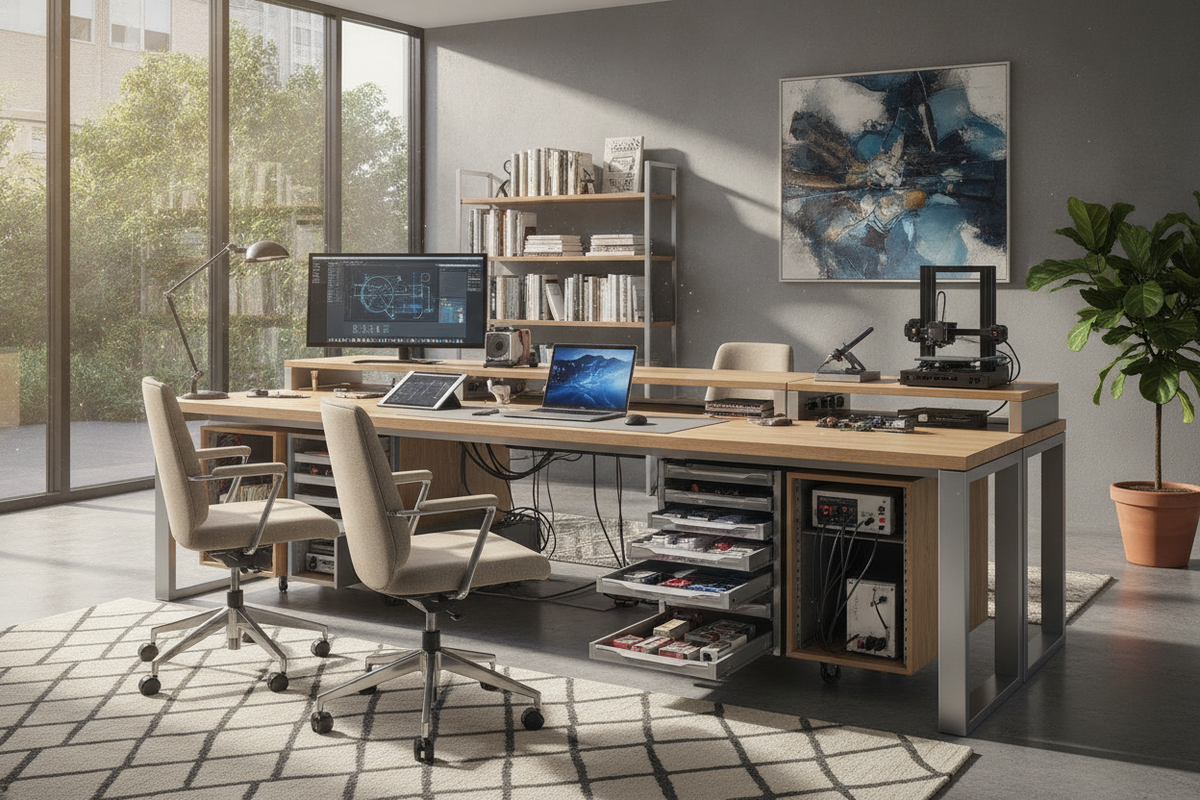
When organizing office equipment, balance heavier accessories symmetrically across the desktop. If dual monitor arms or heavy reference books occupy one side of the surface, place corresponding organizers or electronic hardware on the opposite side to keep the lifting force balanced across both frame legs. Workstations designed with balanced built-in utility, such as a well-engineered standing desk product, centralize wire pathways and integrate storage to prevent uneven loading.
Additionally, evaluate the placement of secondary storage pieces within the room:
- Position mobile storage beside the perimeter: Keep rolling file pedestals and storage caddies alongside the exterior edge of the desk frame rather than tucked beneath the moving tabletop.
- Install dedicated cable trays: Secure power bricks and excess wire lengths within an under-desk raceway so loose wires cannot drape down and catch on floor obstacles.
- Maintain wall clearance: Leave adequate space between the rear edge of the desktop and the office wall to prevent power leads or privacy screens from pinching during elevation adjustments.
Long-Term Motorized Desk Maintenance and Daily Best Practices
Maintaining a height-adjustable workspace requires proactive habits that protect the internal motor assemblies and maintain frame squareness over years of daily service. In my experience editing workstation ergonomics articles, small preventative adjustments to furniture hardware solve far more daily operational snags than electronic resets alone.
Periodically examine the foundation of the desk frame by checking the leveling glides beneath the feet. Floors are rarely perfectly level, and an unlevel base forces the motorized columns to lift against uneven friction. Rotate the threaded leveling glides until the tabletop sits level in both horizontal planes. It is also beneficial to review an aesthetic standing desk guide to harmonize cable management channels with the overall visual flow of the room.
Furthermore, inspect frame assembly fasteners every few months. The micro-vibrations created by everyday typing, leaning, and motorized movement can gradually loosen frame bolts under the desktop. Tightening the crossbar and bracket screws preserves frame rigidity, ensuring the telescoping columns extend squarely without internal binding. By pairing periodic mechanical checks with tidy cable management and proper reset habits, your motorized desk will deliver reliable, smooth height transitions every workday.

Dejar un comentario
Este sitio está protegido por hCaptcha y se aplican la Política de privacidad de hCaptcha y los Términos del servicio.