






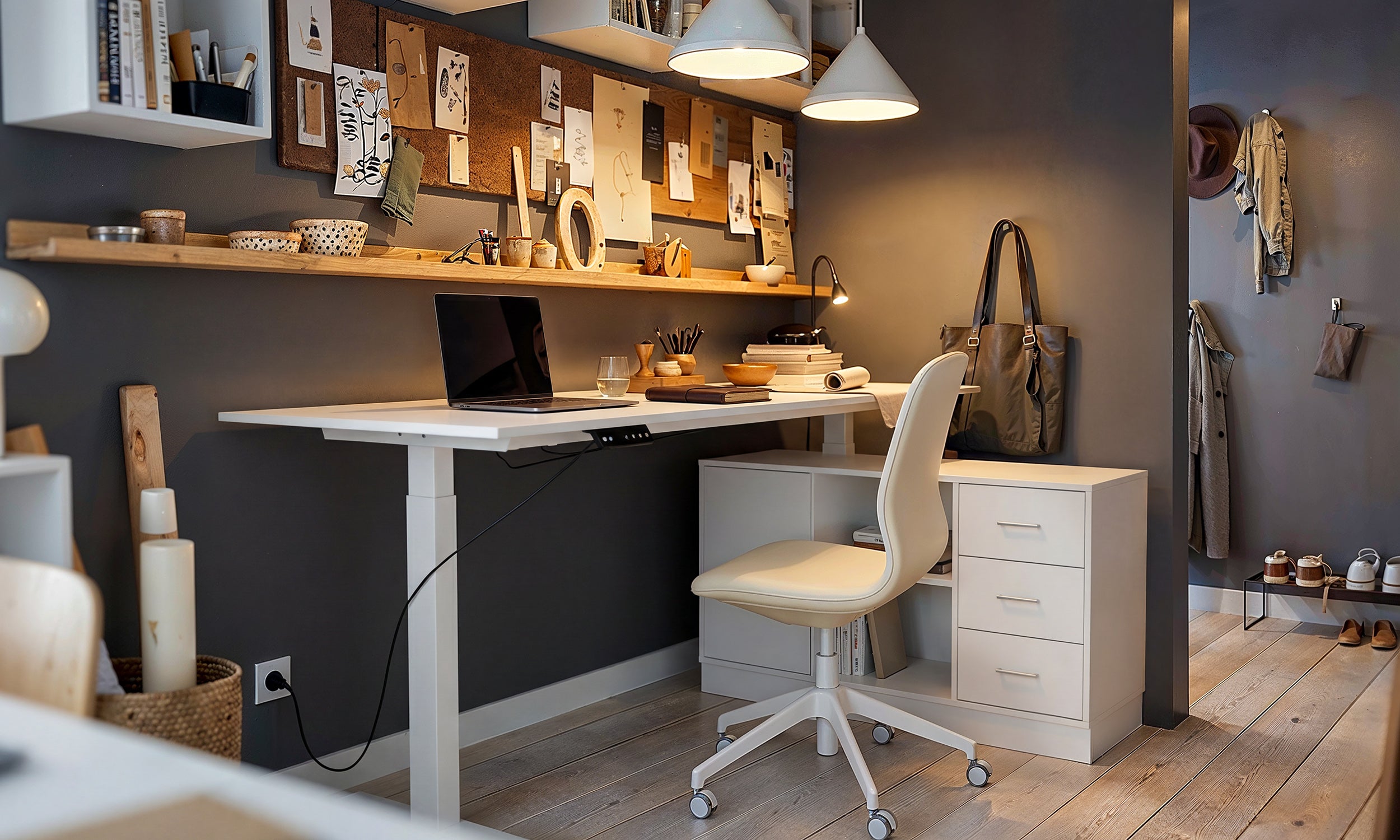
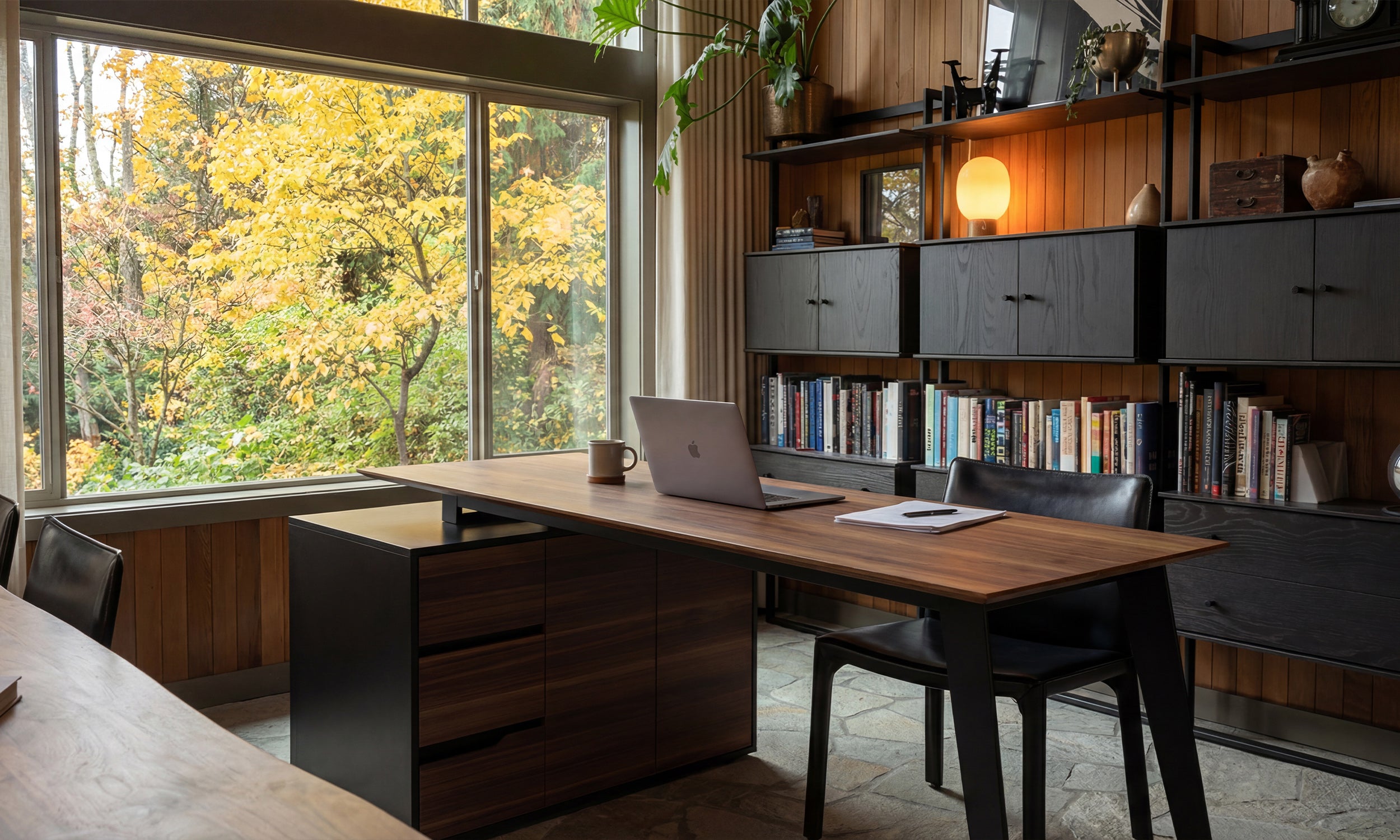


Fundamentals of Proper Ergonomics at Desk
Establishing proper ergonomics at desk spaces transforms how your body feels during hours of computer work. The primary goal of office ergonomics is positioning your equipment so your body remains in a relaxed, neutral position rather than adapting itself to rigid furniture. When you sit or stand with joints aligned and muscles relaxed, you significantly reduce strain across your neck, shoulders, and lower back.
A well-planned ergonomic desk setup does not require complicated gadgets. Instead, it relies on arranging your office chair, working surface, input peripherals, and displays to match your natural proportions. By taking time to fine-tune each element, computer workstations become supportive environments that sustain daily focus without promoting physical fatigue.
Adjusting Your Office Chair and Chair Height
Your seating serves as the foundation for the entire workspace. Before moving your screen or organizing desk accessories, configure your office chair so your lower body is completely supported.
Setting Chair Height and Leg Clearance
Adjust your chair height so your feet rest flat on the floor with knees bent at approximately a right angle. Your thighs should sit parallel to the floor, leaving slight clearance between the front edge of the seat pan and the back of your knees. If your desk surface is fixed too high and you must raise your seat, place a stable footrest underneath so your feet never dangle without support.
Backrest and Armrest Positioning
Position the backrest to cradle the natural inward arch of your spine using dedicated lumbar support. Sit deep enough into the seat cushion so your lower spine makes firm contact with the support pad. Next, adjust the armrests so your shoulders rest naturally relaxed. Your upper arms hang loosely by your sides, with elbows resting lightly on the arm pads without pushing your shoulders upward or forcing your elbows outward.
Dialing in Desk Height and Keyboard and Mouse Placement
Once your chair is dialed in, the relationship between your working surface and input tools determines whether your upper body stays relaxed throughout the day.
Aligning Desk Height with Elbow Level
Your desk height should correspond directly with the resting height of your forearms. When your upper arms hang naturally and your elbows bend comfortably, your wrists should extend forward horizontally without angling upward. If you are reviewing furniture proportions for your room, reviewing standard desk height considerations can help clarify how common desk heights pair with adjustable seating.
Arranging Keyboard and Mouse Within the Primary Work Zone
Place your keyboard and mouse close together on the same surface directly in front of you. Center the keys you use most frequently with your torso so your upper arms close to your sides remain relaxed. When typing or guiding your pointing device, keep your wrists straight rather than bent upward or tilted sideways. A split keyboard can provide a natural angle for wider shoulders, while a low-profile wrist rest offers soft padding between typing bouts without pressing into the carpal tunnel during active keystrokes.
Monitor Height, Laptop Stand Use, and Eye Strain
Visual alignment dictates neck position. When screens are placed too low or far away, leaning forward becomes an unconscious habit that creates persistent neck stiffness and shoulder pain.
Setting Monitor Height and Focal Distance
Position your primary screen directly ahead, roughly an arm's length away. Adjust the monitor height so your horizontal gaze meets the top third of the glass. This alignment lets your eyes read downward across documents without requiring you to tilt your head posture forward or backward. To minimize eye strain, orient the screen perpendicular to nearby windows to avoid glare, and angle overhead lights away from direct display reflections. If you work in tighter quarters, our compact desk ergonomics guide outlines how to position monitors cleanly on shallower surfaces.
Elevating Screens with a Laptop Stand
Laptops force an ergonomic compromise when used flat on a tabletop, compelling users to choose between bent wrists or a strained neck. Setting your computer on a dedicated laptop stand elevates the display to eye level. Pair this lift with a separate external keyboard and mouse on the desk surface so your hands remain low while your head stays upright.
Everyday Movement Rules: 90-90-90, 20-8-2, and 30/30
Even the most supportive ergonomic workstation requires dynamic movement. Static postures, no matter how balanced, eventually create stiffness if held without variation.
- The 90-90-90 Sitting Posture: This classic guideline suggests maintaining right angles at your elbows, hips, and knees. While useful as a neutral baseline, do not treat it as an unyielding mold; gentle shifts and open angles keep circulation moving.
- The 20-8-2 Rhythm: Developed for those using a sit stand desk, this cadence suggests sitting for twenty minutes, standing for eight minutes, and taking two minutes to stretch or walk. Using a standing desk alongside an anti fatigue mat cushions foot pressure during standing intervals.
- The 30/30 Habit: Every thirty minutes, take thirty seconds to reset your alignment. Roll your shoulders back, drop your chin slightly to loosen the back of your neck, and look at an object across the room to rest your vision.
Ten Practical Ergonomic Principles for Workstations
Applying comprehensive office ergonomics comes down to a set of dependable habits. Keep these ten principles in mind as you refine your workspace:
- Maintain a neutral position: Keep spine, neck, and wrists aligned without sharp bends.
- Work in comfortable reach zones: Keep frequent tools within forearm sweep to prevent overreaching.
- Minimize excessive pinch and grip force: Hold your mouse lightly and avoid pounding keyboard switches.
- Keep upper arms close to your body: Avoid winging elbows wide while typing or navigating.
- Vary postures throughout the day: Alternate between sitting and standing rather than freezing in place.
- Keep displays at eye level: Prevent downward head tilt by raising laptops and external monitors.
- Reduce repetitive motions: Alternate tasks or use programmable shortcut keys to give hands periodic relief.
- Optimize workspace lighting: Balance screen brightness against ambient room light to combat visual fatigue.
- Provide clear leg clearance: Keep the area beneath your desk free of boxes so your legs can stretch unhindered.
- Take micro-breaks regularly: Short, frequent pauses protect stamina better than one long break after hours of strain.
Maintaining Your Ergonomic Desk Setup Over Time
Achieving proper ergonomics desk alignment is an ongoing practice rather than a one-time adjustment. As personal tasks shift between heavy typing, video conferences, or writing notes by hand, reconfigure your peripherals accordingly. When mapping out a dedicated home office, consulting an ergonomic workstation planning guide provides helpful perspective on spacing furniture to accommodate daily tasks comfortably.
In my own daily routine, checking chair height and screen distance first thing each morning prevents yesterday's afternoon slouch from carrying into a new workday. Regular micro-adjustments keep your muscles relaxed, protect long-term comfort, and help prevent musculoskeletal disorders across years of focused computer work.


Dejar un comentario
Este sitio está protegido por hCaptcha y se aplican la Política de privacidad de hCaptcha y los Términos del servicio.