




Foundations of Motorized Workstation Keypads and Memory Controllers
Modern motorized workstations rely on electronic control units connected to intuitive digital handsets. These interfaces bridge user input and dual-motor or single-motor lift columns, translating tactile button presses into synchronized elevation changes. Understanding the layout and operational architecture of your controller is the first step toward streamlining your daily workflow.
Basic lift interfaces provide simple manual up and down directional buttons, requiring continuous engagement until the desired elevation is reached. In contrast, advanced digital handsets integrate real-time LED or OLED numerical readouts alongside programmable memory banks. A modern height standing desk product typically features designated numeric slots or distinct posture icons to store custom heights.
Controller logic generally operates in one of two transmission formats: one-touch automated travel or continuous-touch verification. In one-touch mode, a momentary tap commands the desk to glide autonomously to the stored coordinate. In continuous-touch configurations, the user maintains contact with the selected preset until movement completes, providing manual oversight throughout the travel path.
Standard Operating Protocols: How to Set Standing Desk Presets Across Common Handset Architectures
Programming memory presets is a straightforward process, though exact button sequences vary depending on whether your handset uses dedicated programming keys, direct long-press slots, or intuitive visual silhouettes.
Sequence 1: The Dedicated Setup Key Protocol
Many multi-button digital controllers utilize a dedicated setup key, often labeled M (Memory) or S (Set). To lock in an elevation baseline:
- Use the manual directional buttons to raise or lower the desktop to your target height.
- Press the M or S button once. The digital display will typically flash, pulse, or show a prompt indicator.
- Within a few seconds, press the numeric preset button (such as 1, 2, 3, or 4) where you wish to assign that elevation.
- The display will signal completion with a steady numeric reading or an acknowledgment flash, confirming that the coordinate is saved.
Sequence 2: The Direct Long-Press Method
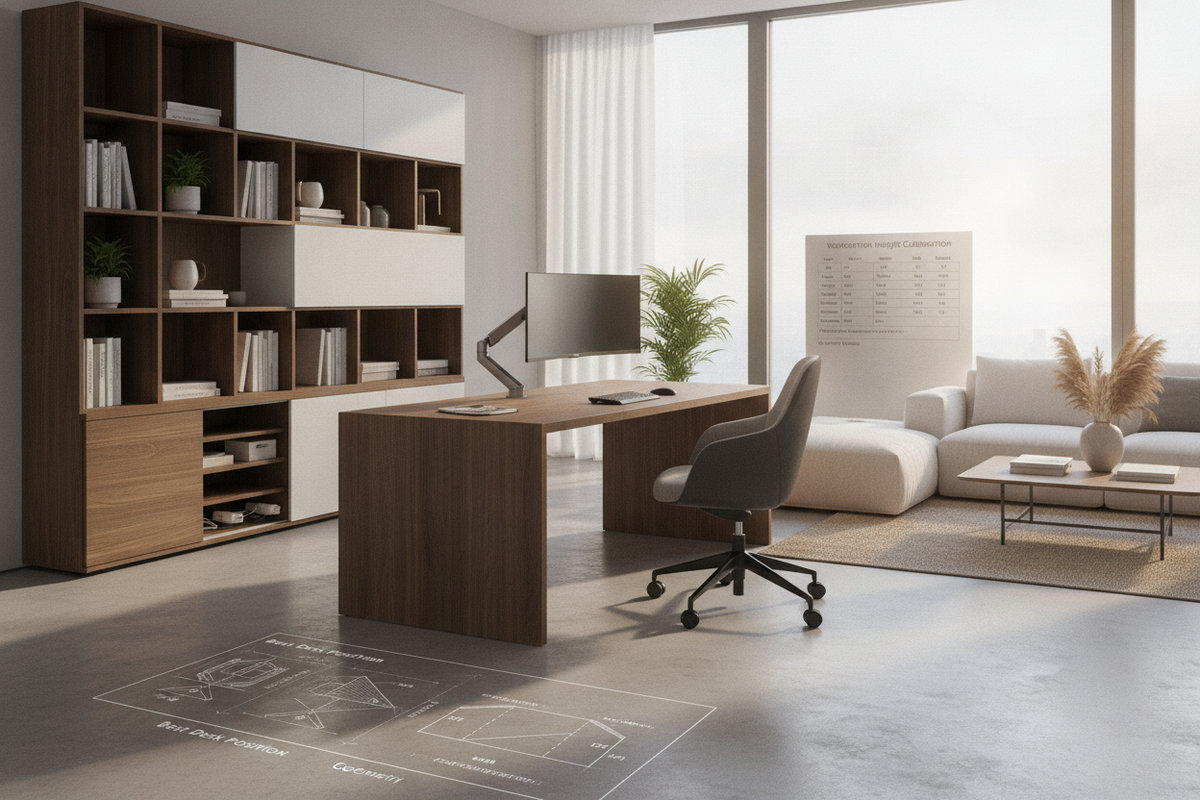
Simplified handsets often eliminate the extra set button in favor of direct assignment. When designing a standing desk setup that actually looks good, minimalist handsets reduce visual clutter while maintaining full memory functionality:
- Drive the desk to your preferred height using the directional arrows.
- Press and hold the target numbered button continuously for several seconds until the digital display blinks or sounds a confirmation chime.
- Release the button. The current height coordinate is now locked to that specific slot.
Sequence 3: Visual Silhouette Icon Handsets
Some contemporary keypads use intuitive seated and standing chair icons alongside numeric slots. To program these visual presets:
- Seated Profile: Adjust the desktop to your seated work level, press the programming key, and select the seated silhouette icon.
- Standing Profile: Elevate the frame to your standing alignment, engage the programming key, and tap the standing silhouette icon.
- Auxiliary Tasks: Reserve numbered slots for secondary activities, such as perching on an active drafting stool or walking on an under-desk treadmill.
Ergonomic Calibration: Determining Precise Seated and Standing Elevation Baselines
Before locking coordinates into your controller, calibrate the desktop height to your natural posture rather than guessing approximate figures. Proper alignment promotes physical comfort and seamless transitions throughout the workday.
Establish your seated baseline first. Adjust your office chair so your feet rest flat on the floor with thighs parallel to the ground. Relax your shoulders and let your upper arms hang naturally. Adjust the workstation surface until your forearms rest comfortably on the desktop, forming an open, relaxed angle at the elbows without causing your shoulders to shrug upward.
When calibrating your standing baseline on a spacious surface like a 71 w height adjustable standing desk, account for footwear and floor accessories. Standing on an anti-fatigue mat or wearing cushioned shoes slightly alters your standing floor-to-elbow distance. Stand tall with neutral spinal alignment, raise the desk surface to meet your forearm resting level, and confirm that your wrists remain straight while engaging your keyboard and mouse.
Once tabletop elevations are dialed in, adjust peripheral monitor arms and laptop stands. The top third of your display screen should rest at or slightly below eye level, preventing neck strain across both seated and standing modes.
Troubleshooting and Controller Initialization: Reset Sequences and Overload Diagnostics
Electronic lift columns may occasionally lose synchronization due to unexpected power disruptions, cable disconnections, or physical resistance. When a controller displays an error code, fails to respond to preset commands, or moves unevenly, an initialization reset restores proper function.
The Universal Initialization Reset Sequence
- Clear all obstructions from beneath and around the desk frame.
- Press and hold the manual down button until the desk descends to its lowest mechanical travel limit.
- Release the button momentarily, then press and hold the down button again for several seconds.
- The desk frame will slightly dip, rise, or flash a reset confirmation on the digital display, signaling that the lower boundary is recalibrated.
- Test standard directional travel and verify that memory presets function as intended.
If the handset remains unresponsive, confirm that the child-lock feature has not been activated. Many digital controllers allow users to lock the keypad by holding a specific button combination, preventing unintended movement. Deactivating the lock restores normal operation.
Kinetic Travel Clearances, Dynamic Cable Slack, and Storage Integration
A motorized workstation operates as dynamic architectural furniture. Ensuring unobstructed travel paths protects your equipment, decorative finishes, and surrounding cabinetry.
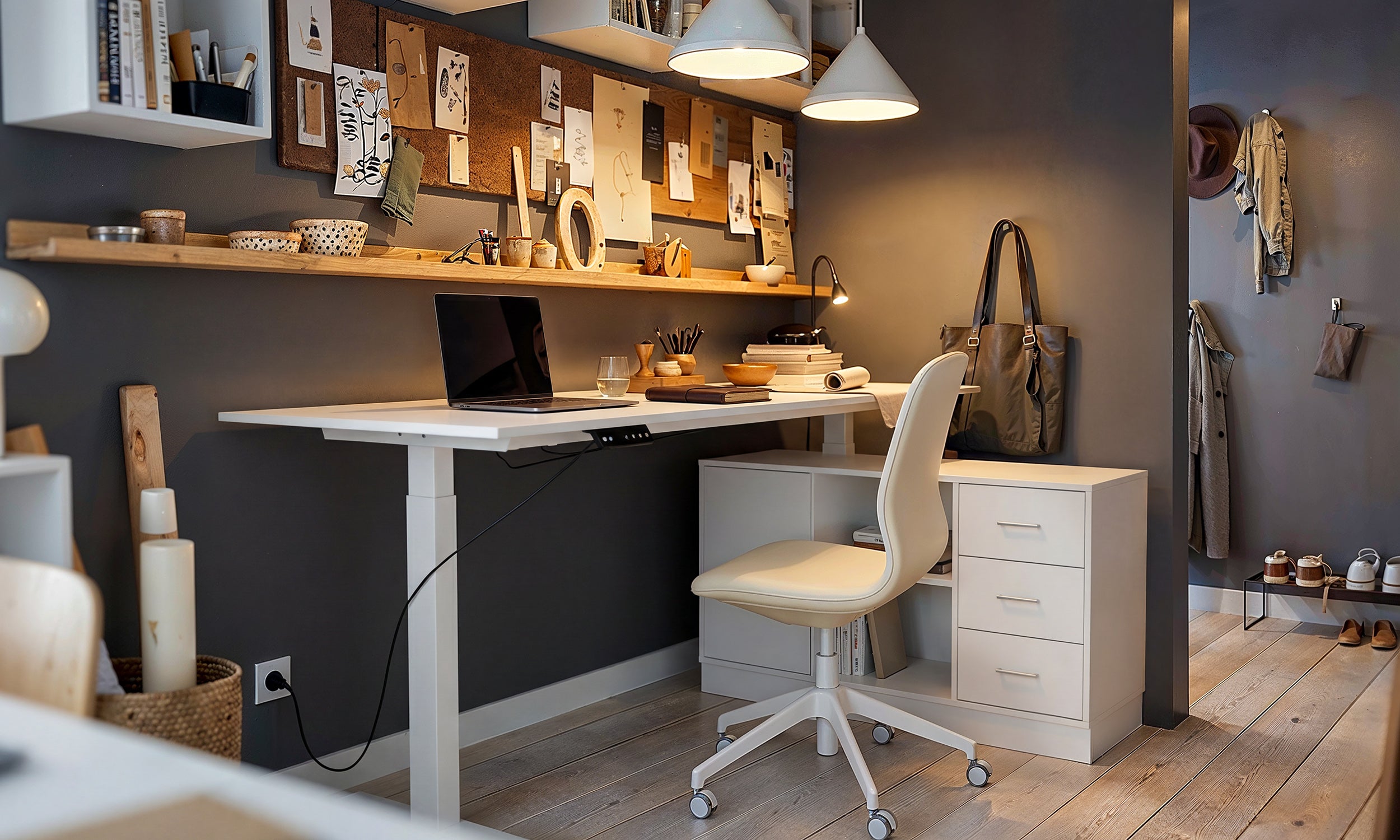
Dynamic cable management is essential when configuring memory presets. Route power strips, display cords, and peripheral cables through flexible vertebrae tracks or under-desk cable trays. Always raise the desk to its highest preset elevation when measuring cable runs to ensure adequate slack. Taut cables risk dislodging hardware ports or pulling equipment off the desktop during upward travel.
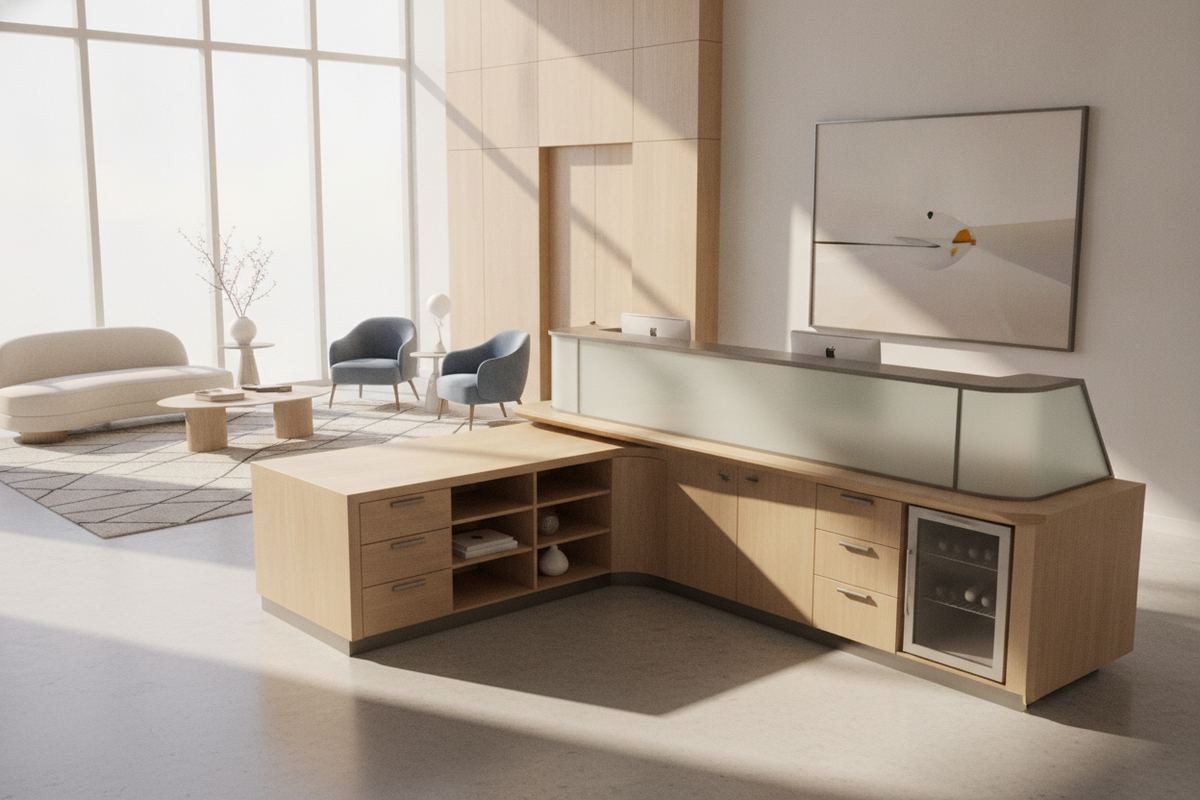
Coordinate mobile storage carefully within the kinetic envelope. When implementing spatial concepts from elevate your space designer ideas for standing desk layouts, place rolling filing cabinets, mobile pedestals, and waste bins outside the vertical descent path. Keeping dedicated clearance beneath crossbars and tabletop edges prevents lower pinch points when moving between saved presets.
Maintain a subtle perimeter gap between the desktop edges and adjoining walls, bookshelves, or credenzas. This buffer ensures smooth kinetic travel while protecting both your motorized workstation and surrounding workspace storage.

Dejar un comentario
Este sitio está protegido por hCaptcha y se aplican la Política de privacidad de hCaptcha y los Términos del servicio.