









Foundations of Seating Geometry: Defining Neutral Alignment
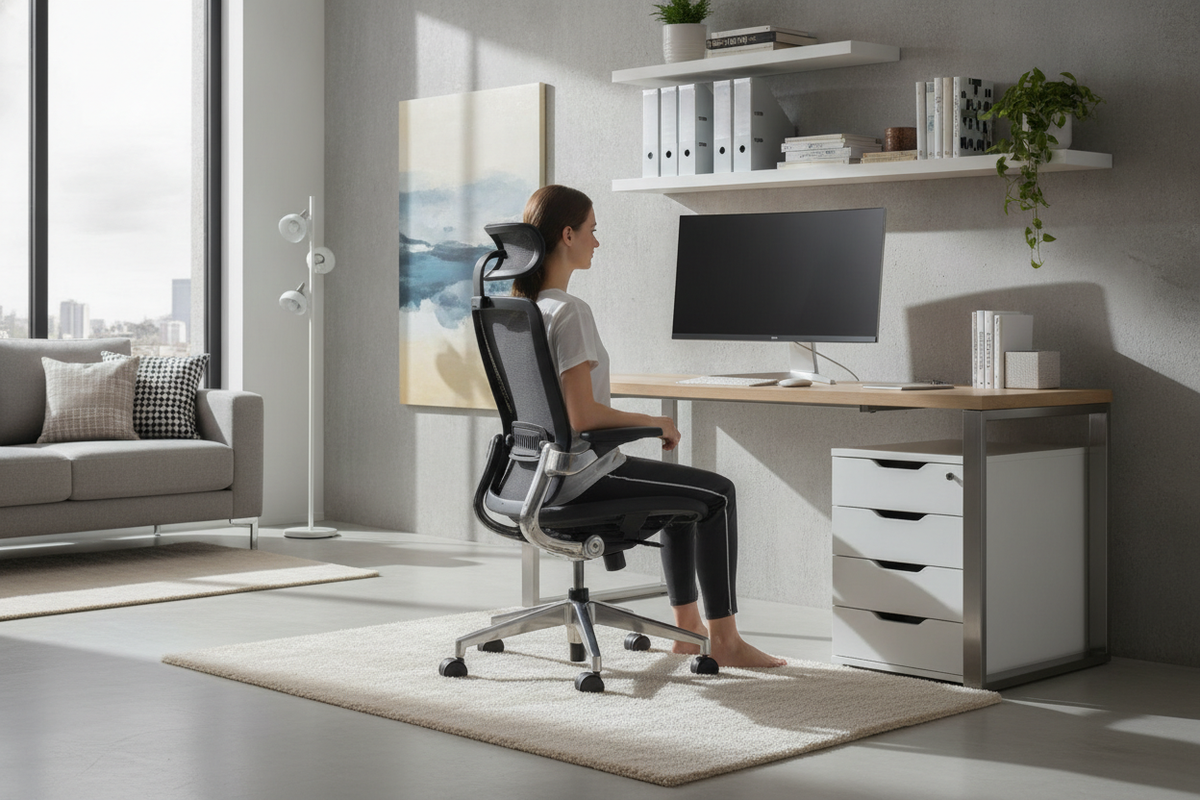
Achieving the best desk chair posture is less about maintaining a rigid, motionless military stance and more about establishing a harmonious, balanced relationship between your body and your furniture. When sitting in a neutral alignment, your body rests comfortably with natural spinal curves preserved, the pelvis balanced upright, and physical contact distributed evenly across the chair surfaces.
A balanced posture begins at the base. Your feet should rest flat on the floor or on a stable footrest, creating a solid foundation that supports the lower limbs. In this orientation, your hips and knees rest comfortably at natural right or slightly open angles, which prevents concentrated pressure along the back of the thighs. The pelvis serves as the keystone of your upper body alignment: sitting too far forward tilts the pelvis anteriorly and hollows the lower back, while slumping backwards causes the pelvis to tuck under, flattening the lumbar curve. Neutral seating geometry keeps the pelvis level, allowing the spine to rise naturally toward relaxed shoulders and an upright neck.
Essential Chair Mechanical Adjustments for Optimal Posture
Modern office seating relies on a series of integrated adjustments to achieve the best chair posture for different body types and work habits. Understanding how each lever and knob influences alignment allows you to configure your workspace with precision.
- Pneumatic Seat Height: Adjust the cylinder so your feet rest completely flat on the floor while your thighs remain parallel to the ground. If your knees point upward, the seat is set too low; if your feet dangle or you feel excessive pressure on the undersides of your thighs, the seat is too high.
- Seat Pan Depth (Seat Slider): The seat pan should support the length of your thighs without pressing into the back of your calves. Adjust the seat pan forward or backward so a small gap remains between the front edge of the cushion and the back of your knees.
- Lumbar Support Height and Depth: Position the lumbar curve directly into the natural inward curve of your lower back. The support should feel firm and continuous without pushing your lower torso forward away from the main backrest.
- Armrest Calibration: Set armrests to a height where your forearms rest comfortably with shoulders fully relaxed. Armrests adjusted too high cause the shoulders to shrug upward, while armrests set too low encourage leaning sideways to find elbow support.
Desk-to-Chair Interface: Clearing Armrests and Legroom
A properly adjusted task chair must interact cleanly with your primary work surface. Many posture issues arise not from the chair itself, but from spatial conflicts at the desk boundary. When armrests collide with the desktop apron or keyboard tray, users are often forced to sit too far back, resulting in forward head tilt and reaching strain.
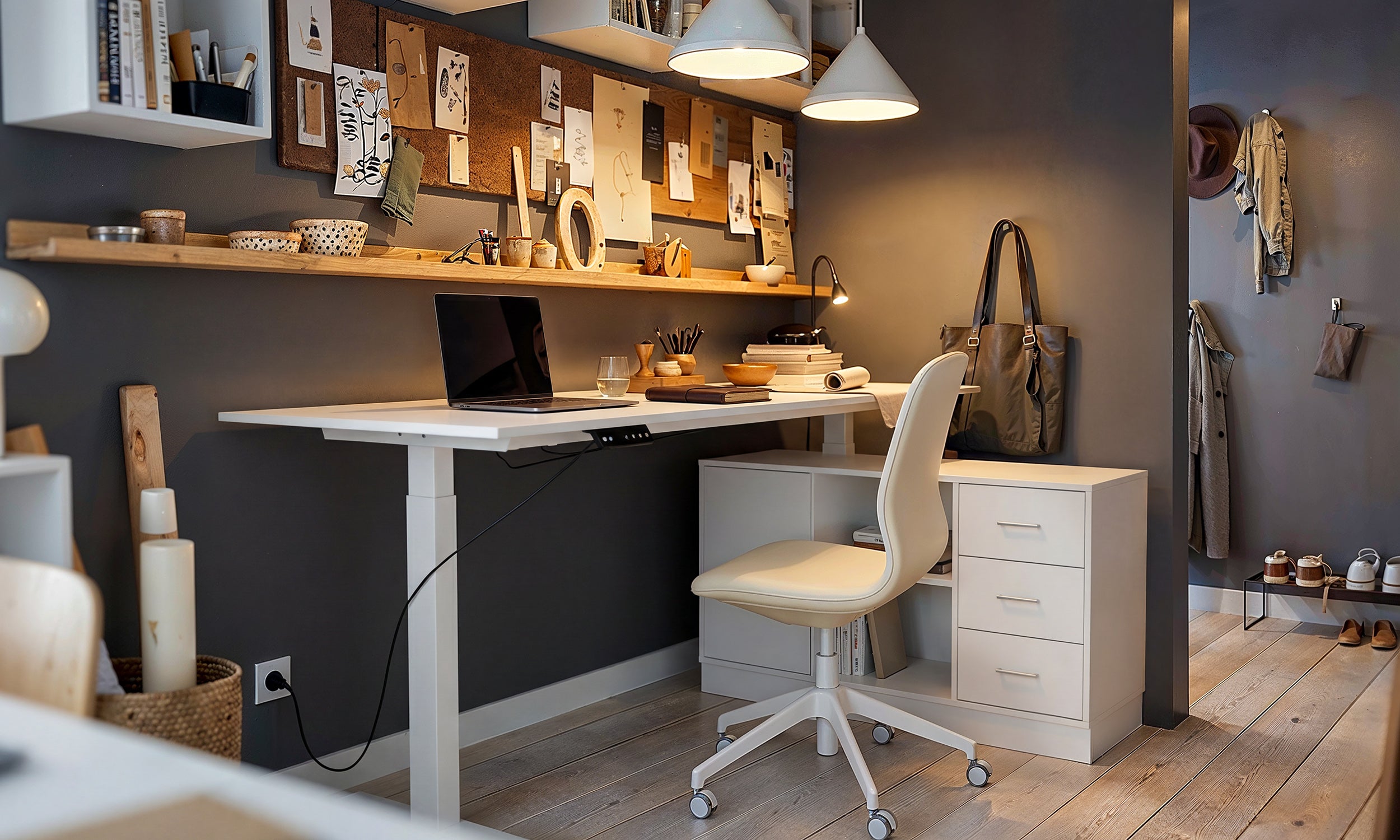
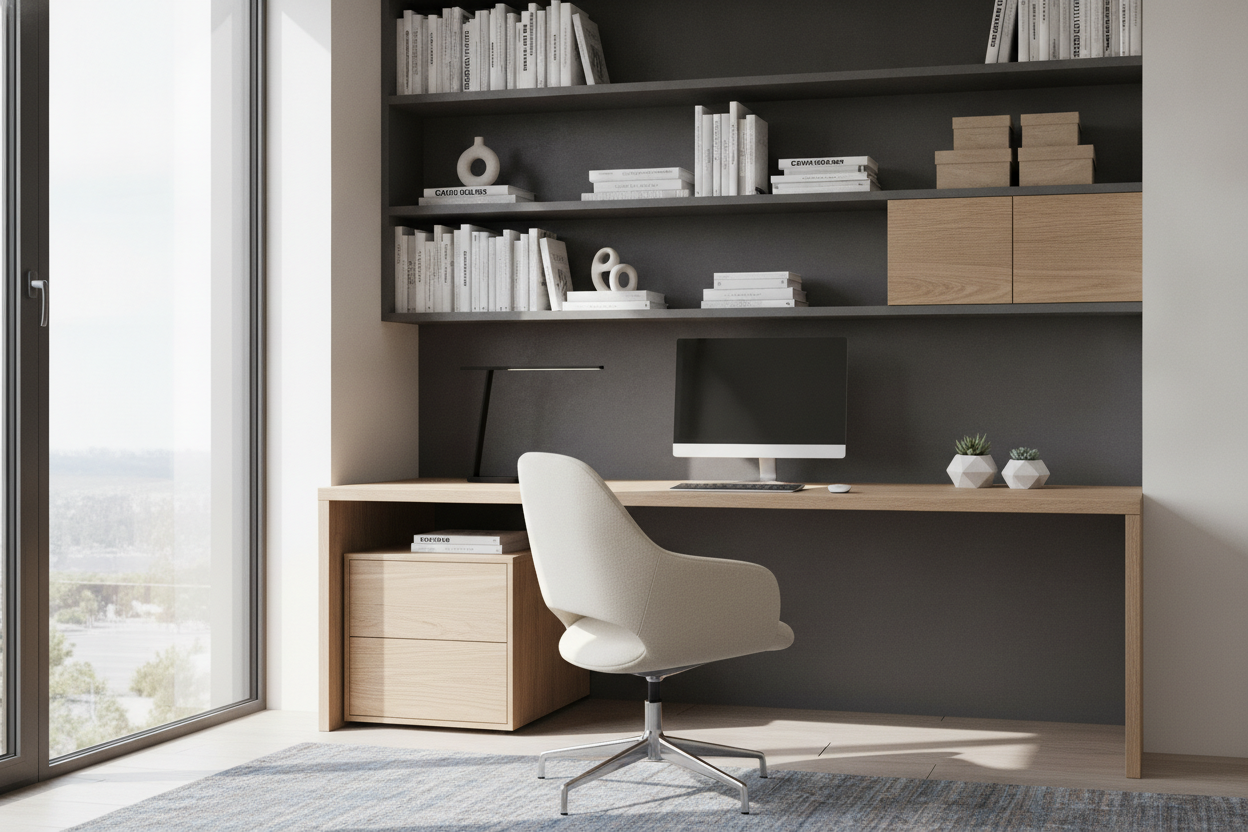
To establish a smooth interface, ensure your desk clearance allows the chair to glide close enough so your forearms rest naturally on the desk or input surfaces. For a comprehensive look at balancing workstation heights and matching components, consult our chair desk guide. Adequate vertical clearance beneath the desktop also ensures your knees and thighs have ample room to shift freely, preventing awkward leg tucking or crossing that disrupts pelvic balance.
Reach Zones and Storage Integration: Protecting Upper-Body Posture
Maintaining proper seating geometry requires looking beyond the chair cushion to your broader storage layout. Overreaching for everyday items compromises spinal alignment by pulling the torso out of its supported backrest position. Structuring your desk around ergonomic reach zones keeps your posture stable throughout the day:
- Primary Reach Zone: Items used constantly—such as your keyboard, mouse, notepad, and central input devices—should sit within the sweep of your forearms without extending your elbows away from your torso.
- Secondary Reach Zone: Frequently referenced files, desktop organizers, and daily work tools should be accessible with an extended arm sweep while keeping your back against the chair.
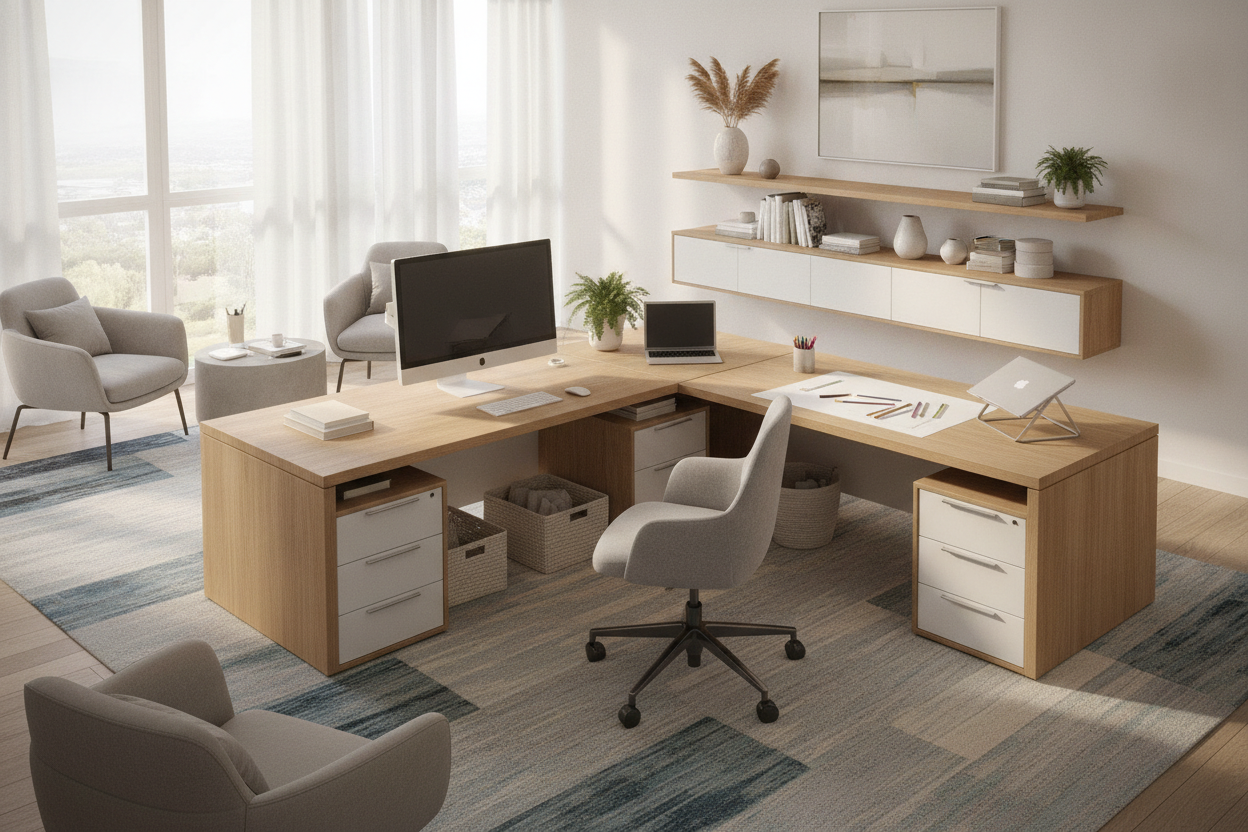
- Tertiary Storage Zone: Larger lateral cabinets, mobile pedestals, and auxiliary credenzas store archived paperwork and occasional supplies. Accessing these should involve turning your entire chair or standing up rather than executing awkward trunk twists.
Integrating nearby modular pedestals or low storage credenzas supports consistent posture by eliminating clutter on the primary desktop. You can explore practical layout selections in our desk chair guide to match storage heights with your seating configuration.
Dynamic Sitting Frameworks: Movement, Recline, and Pacing
Even the most perfectly calibrated posture can lead to fatigue if held in total stillness for hours. The human body is designed for dynamic movement, and the modern understanding of the best chair posture incorporates active seating principles and variable positioning.
Take advantage of your chair's synchronized tilt and recline mechanisms. Reclining the backrest slightly shifts a portion of upper-body weight from the seat cushion to the backrest structure, offering a restorative variation during reading or virtual meetings. Adjust the tilt tension knob so the chair smoothly responds to your body weight without requiring muscular effort to recline or snapping forward abruptly when you sit upright. In my own studio workspace, alternating between an upright typing orientation and a gently reclined review posture keeps long afternoons feeling comfortable and focused.
Workspace Evaluation Framework: Troubleshooting Common Posture Pitfalls
Periodic self-checks help identify when small ergonomic misalignments start affecting your sitting habits. Use this quick evaluation framework to identify common posture pitfalls and apply immediate adjustments:
- Edge Perching: If you find yourself perching on the front edge of the cushion away from the backrest, check whether your monitor is positioned too far away or if your desk height is forcing you forward. Adjust the seat pan depth and bring your display closer.
- Shoulder Shrugging: If your shoulders feel elevated or tense, lower your armrests or adjust your work surface down so your forearms rest in a relaxed, horizontal position.
- Foot Tucking: If you habitually hook your feet around the chair base or cross your ankles under the seat, your seat cylinder may be slightly too high. Lower the seat until your soles rest comfortably flat on the flooring.
- Lateral Leaning: Leaning consistently on one armrest usually indicates an off-center keyboard setup, monitor placement, or storage layout. Re-center your primary tools directly in front of your chair centerline.
By harmonizing mechanical adjustments, desktop clearance, and accessible storage zones, you can maintain the best desk chair posture with minimal effort throughout your entire workday.

Dejar un comentario
Este sitio está protegido por hCaptcha y se aplican la Política de privacidad de hCaptcha y los Términos del servicio.