






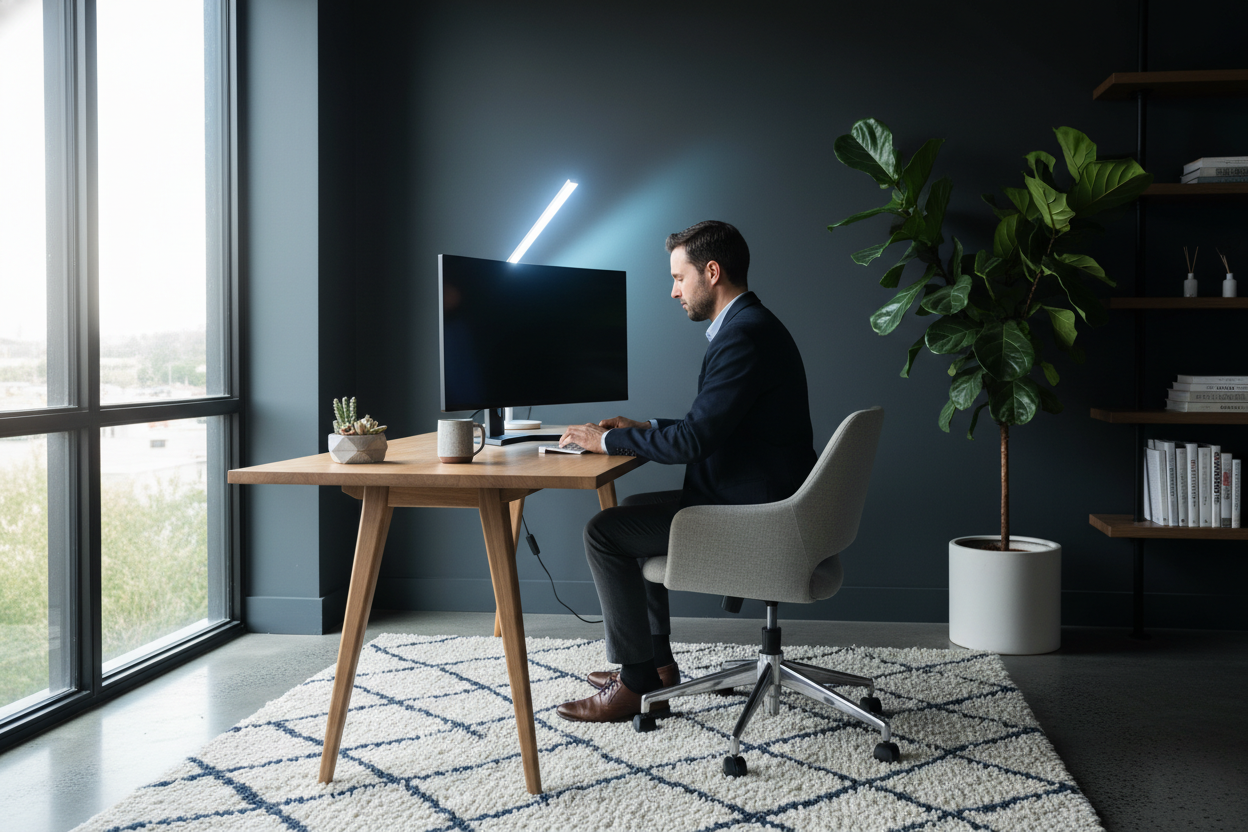
We have all experienced it: you invest in a stunning mahogany desk, an ergonomic chair that rivals a cockpit, and high-end shelving, yet by 2:00 PM, you are battling a migraine and squinting at your screen. The culprit is rarely the furniture itself—it is the illumination. As a designer, I see clients treat lighting as an afterthought, but finding the best lighting for computer workstation setups is actually the foundational element of a functional, sophisticated home office.
Quick Decision Guide: The Essentials
- Color Temperature: Aim for 4000K to 5000K (Cool White) for alertness, but ensure you have warmer options for evening wind-down.
- Positioning: Never place a light source directly behind you (glare) or directly behind the monitor (silhouette).
- Color Rendering Index (CRI): Look for CRI 90+ bulbs to ensure your finishes and fabrics look true to life.
- Layering: A single overhead light is insufficient. You need a mix of ambient, task, and bias lighting.
- Adjustability: Dimmable fixtures and articulating arms are non-negotiable for ergonomic comfort.
Mastering Color Temperature and Quality
When selecting the best light color for computer work, we must balance biology with aesthetics. Lighting sits on a Kelvin scale. For a workspace, the warm, cozy glow of a living room lamp (2700K) is too relaxing and can strain eyes when contrasted against a bright white monitor. Conversely, harsh daylight bulbs (6500K) can feel sterile and clinical.
I recommend a "Cool White" range between 3500K and 4500K. This spectrum mimics natural daylight, keeping cortisol levels managed for productivity without washing out the warmth of your wood veneers or wall colors. Furthermore, pay attention to the best light bulb for computer work regarding CRI (Color Rendering Index). A low CRI bulb makes high-end furniture look flat and dull. Invest in LEDs with a CRI of 90 or higher to maintain the visual integrity of your space.
The Architecture of Light: Positioning
The best lighting position for computer desk layouts is all about controlling shadows and glare. A common error is placing a task lamp directly in front of the user, aiming down. This often creates a "hotspot" on the desk surface, especially if you are working on a glass or lacquered top.
The Off-Center Approach
Ideally, the light position for computer work should be to the side of your dominant hand (to the left if you are right-handed) and slightly below eye level. This prevents shadows from being cast across your documents while writing and keeps the light source out of your direct line of sight.
Bias Lighting: The Secret Weapon
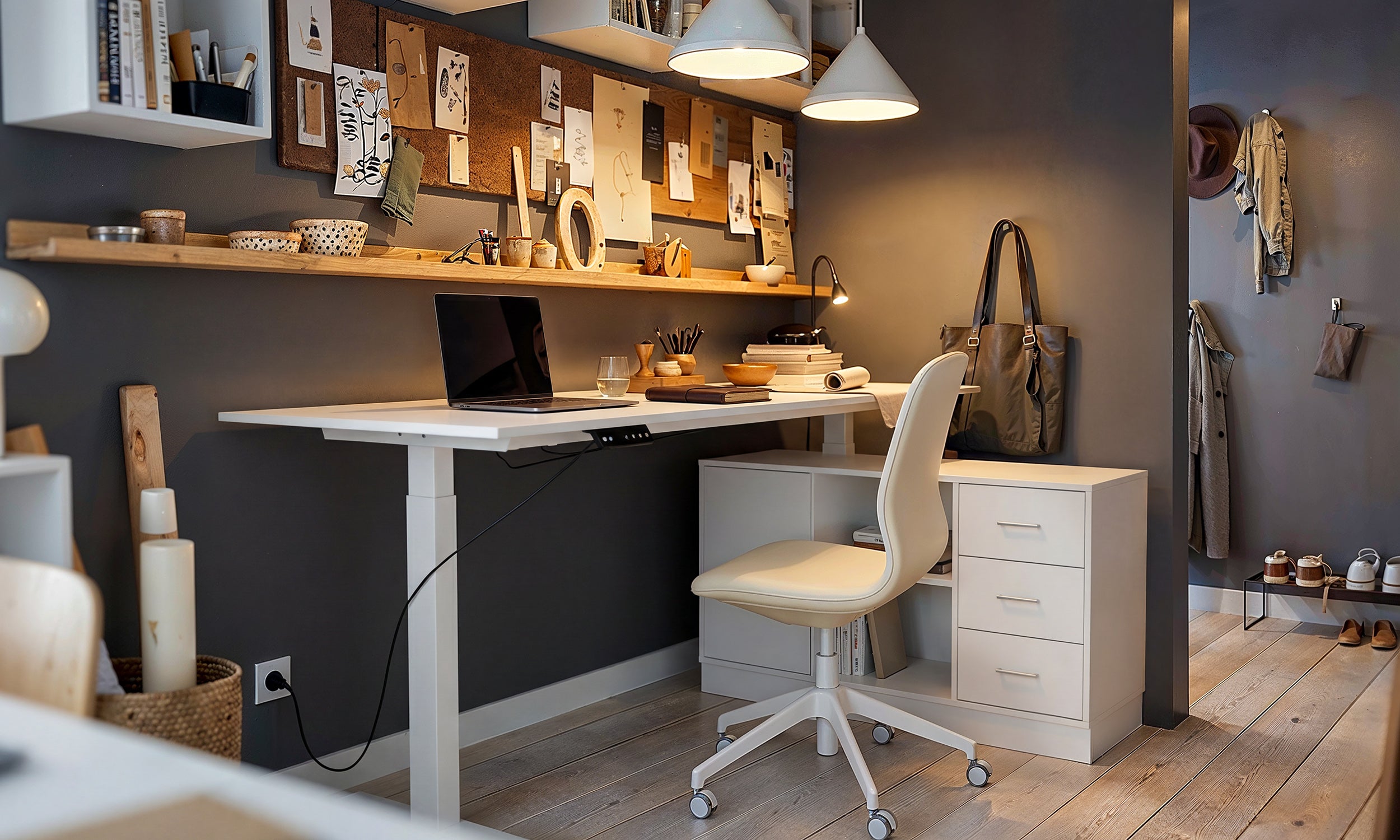
To truly elevate the lighting for computer workstations, introduce bias lighting. This involves placing a soft, diffused light source behind your monitor, illuminating the wall behind it. This reduces the contrast ratio between the bright screen and the dark room, significantly reducing eye strain. An LED strip hidden behind a desk ledge or a monitor arm adds a layer of architectural depth and luxury.
Selecting the Right Fixture for the Job
When curating the best light for working on computer tasks, the physical design of the lamp matters as much as the bulb.
- The Monitor Bar: For minimalist, modern setups, a screen bar that sits atop your monitor is superior. It directs light strictly onto the keyboard area, eliminating screen glare entirely.
- The Architect Lamp: For traditional or industrial spaces, an articulating arm lamp offers classic silhouettes. Look for matte finishes—brushed brass or matte black—rather than chrome, which can create distracting reflections.
My Personal Take on Workstation Lighting
I learned the hard way about the interplay between surface texture and lighting during a project for a client in a high-rise downtown. We installed a gorgeous, high-gloss burl wood desk—a true statement piece. To match the luxury feel, I initially specified a powerful, architectural halogen task lamp.
It was a disaster. The heat from the halogen was uncomfortable, but the real issue was the reflection. The glossy burl wood acted like a mirror, bouncing the bulb's glare straight into the client's eyes. I had to swap it out for a dimmable LED monitor bar with an asymmetrical optical design. It wasn't the "statement" lamp I wanted visually, but it saved the functionality of the desk. The lesson? If your furniture has a sheen, your light source must be diffused. Always check the "hotspot" reflection before committing to a lamp placement.
Curating Your Productive Haven
Achieving the best lighting for office computer work is less about buying the brightest bulb and more about layering light to create a visual hierarchy. By combining a high-CRI task light, bias lighting behind your screen, and softer ambient fill light, you create a workspace that is as comfortable as it is commanding.
Frequently Asked Questions
What is the absolute best light bulb for computer work regarding eye health?
Smart LED bulbs are currently the gold standard. They allow you to adjust the temperature throughout the day—starting with a cool blue-white (4500K) for morning focus and shifting to a warm amber (2700K) as you wind down, aligning with your circadian rhythm.
Does the desk surface material affect my lighting choice?
Absolutely. Darker, matte surfaces (like walnut or matte laminate) absorb light, requiring slightly higher lumens (brightness). Glossy, glass, or white surfaces reflect light, meaning you need diffused fixtures and lower brightness to prevent blinding glare.
Is natural light good for computer work?
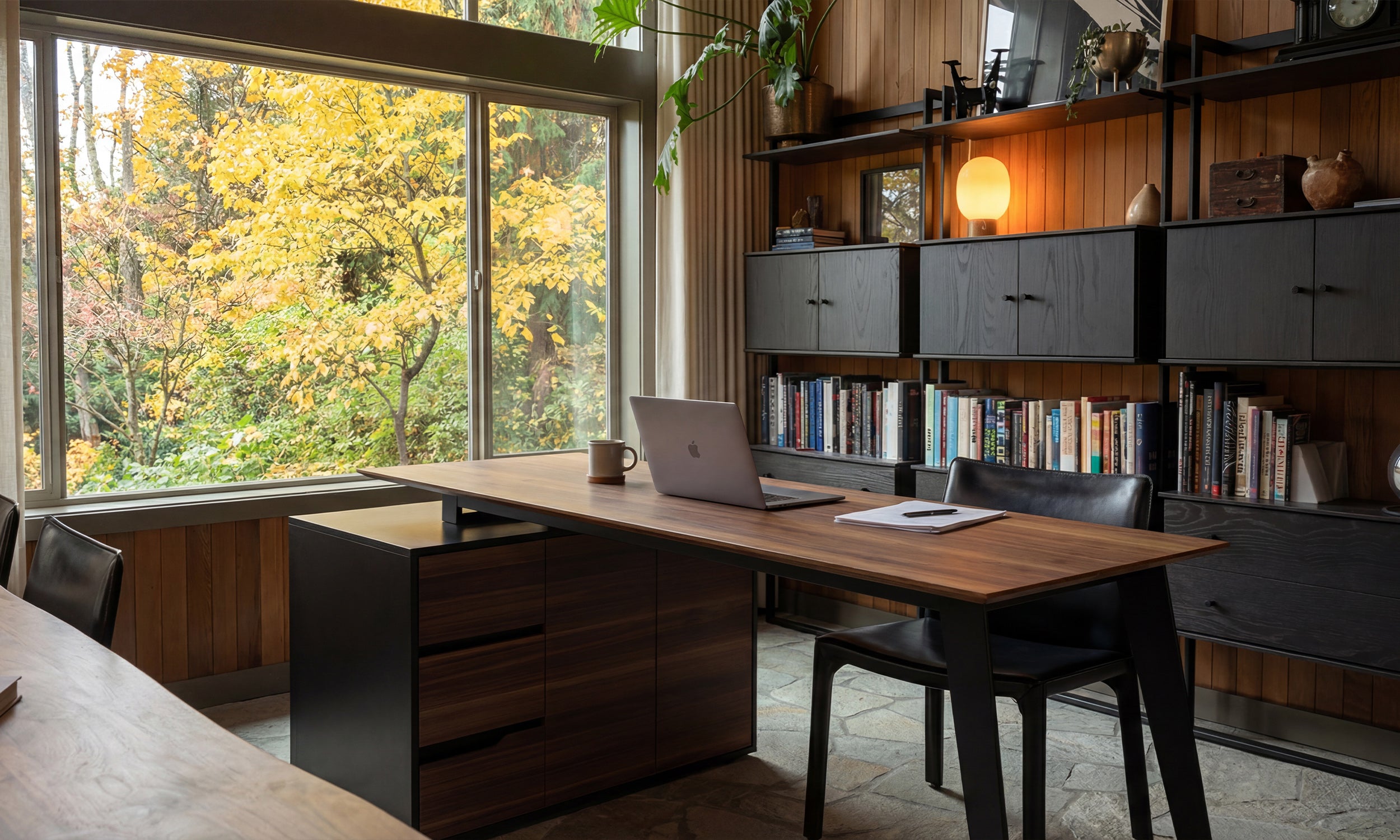
Natural light is excellent for mood, but direct sunlight on a monitor creates unmanageable glare. Position your desk perpendicular to windows (so the window is to your side), rather than facing it or having it behind you.

Leave a comment
This site is protected by hCaptcha and the hCaptcha Privacy Policy and Terms of Service apply.