


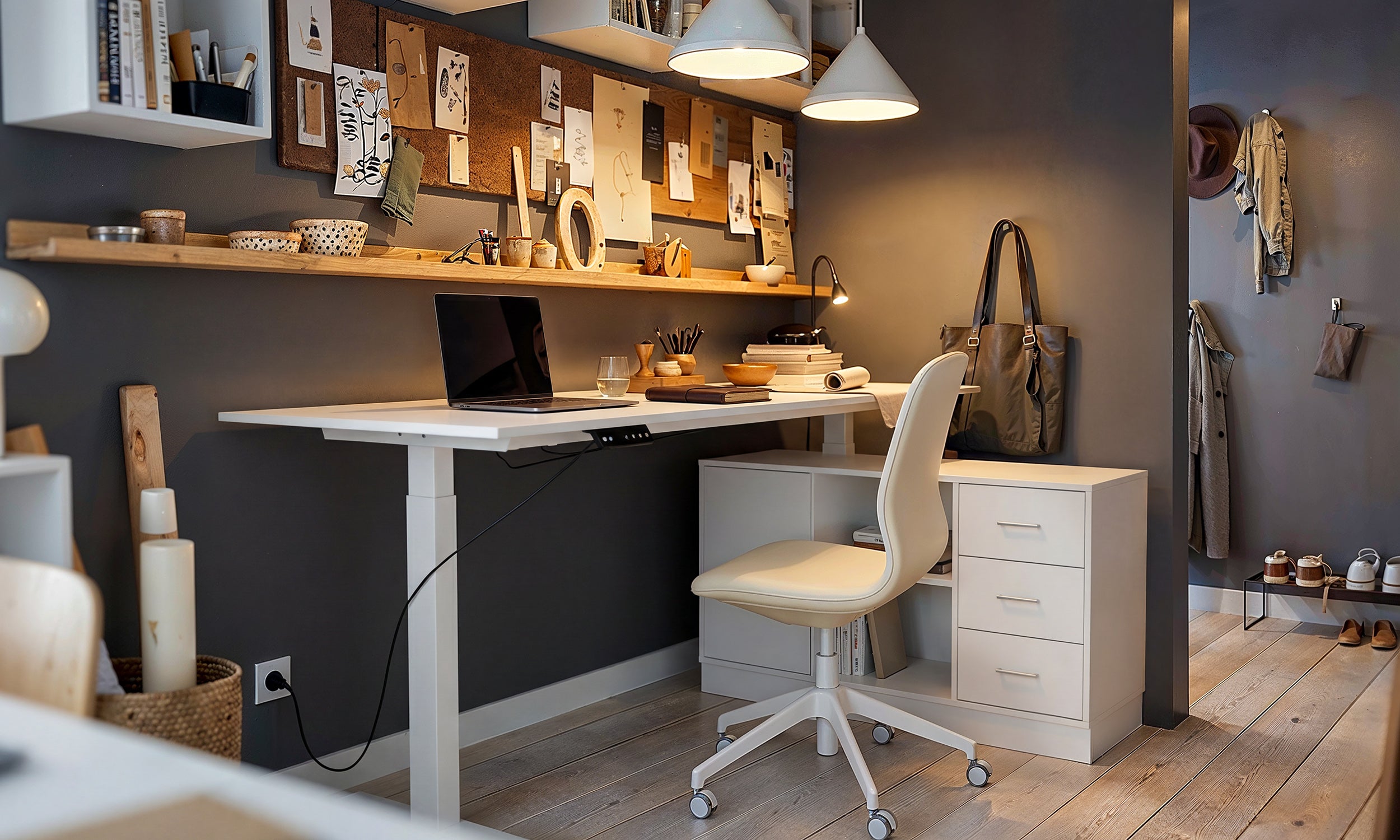
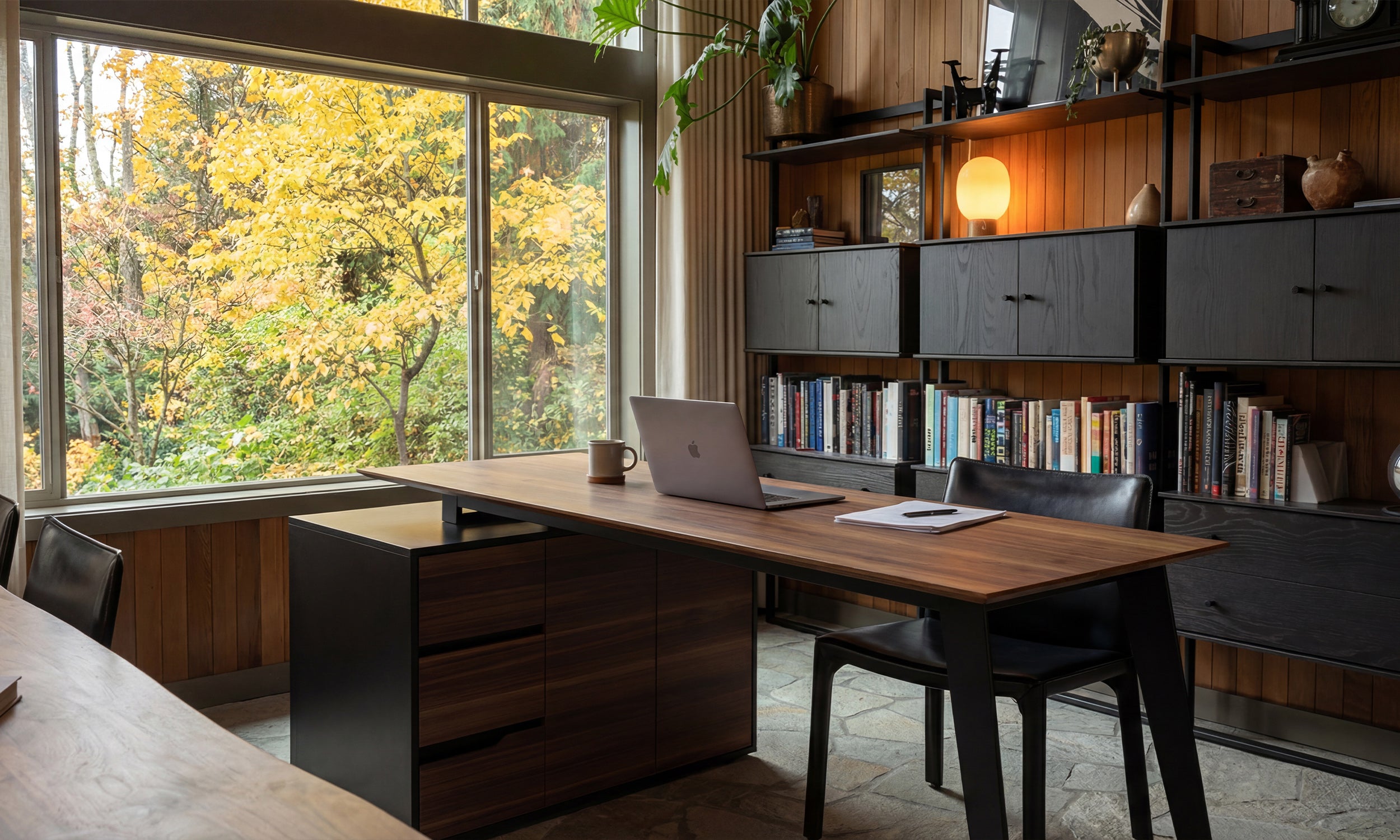


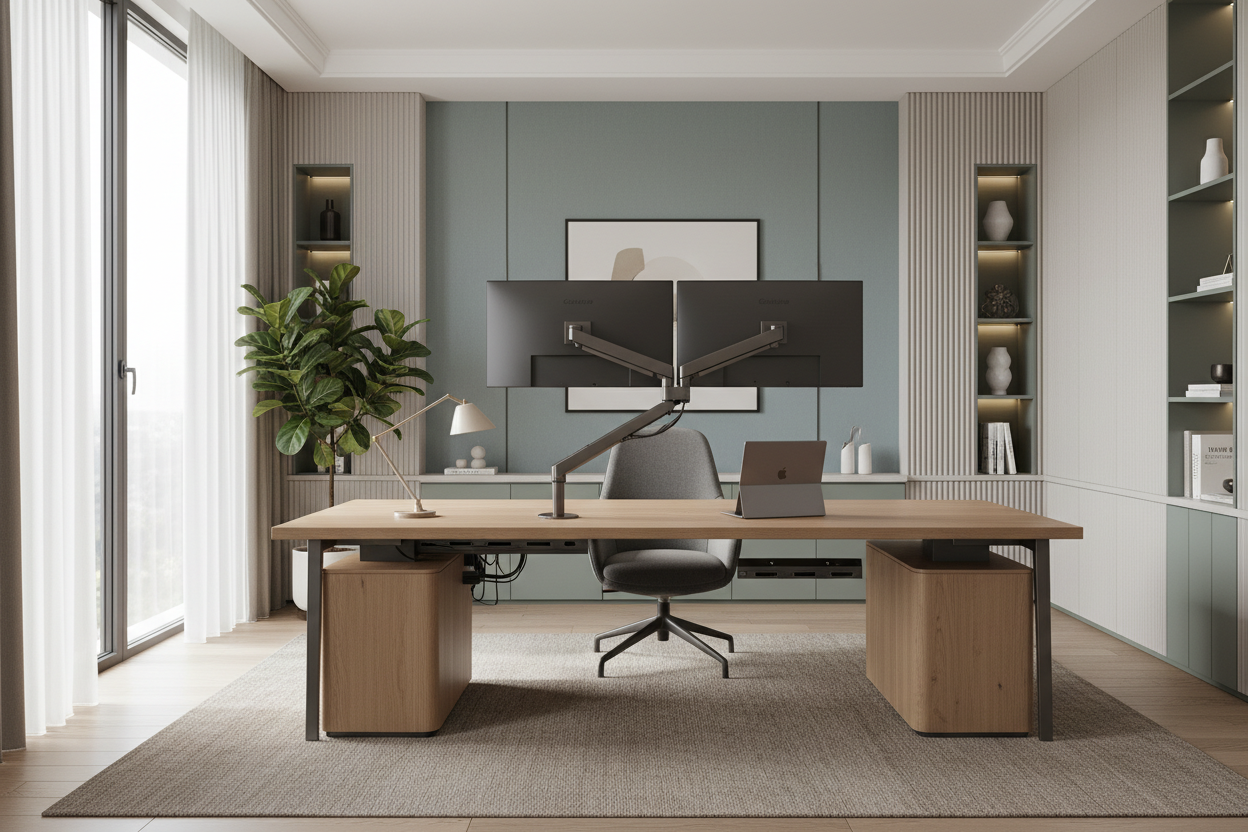
One of the most frequent challenges I encounter when consulting on residential workspaces is the clash between necessary technology and desired aesthetics. We want the productivity of a command center, but we don't want our living spaces to look like a server room. The secret lies in a curated home monitor setup that prioritizes visual balance alongside technical performance. It is not just about plugging in a screen; it is about integrating hardware into your design scheme so it feels intentional, not intrusive.
Key Features for a Cohesive Workspace
- Mounting Systems: Utilize articulating arms to float screens, reclaiming desk surface and reducing visual clutter.
- Desk Depth: Ensure a minimum depth of 24-30 inches to maintain proper focal distance and prevent a cramped silhouette.
- Material Contrast: Balance the cold plastic of monitors with warm, organic desk materials like walnut or oak.
- Cable Management: Look for integrated raceways or vertebrae systems to maintain a clean visual line.
- Lighting Hierarchy: Incorporate bias lighting behind screens to reduce eye strain and soften the harsh glare of the display.
Harmonizing Tech with Interior Design
When planning a home office setup with laptop integration, the primary goal is to manage "visual weight." A large black rectangle (your monitor) is visually heavy. If you place it on a delicate, spindly glass desk, the proportion feels off. I always advise clients to anchor their tech with substantial furniture. A solid wood desk with a beveled edge not only supports the physical weight of a clamp-mount monitor arm but also provides the textural warmth needed to counteract the sterility of the screen.
The Laptop Integration Strategy
Many homeowners struggle with how to setup home office with laptop hardware as the primary engine. Simply leaving the laptop open on the desk creates a "double horizon" line that looks messy and forces poor posture.
The Clamshell vs. The Dual-Screen
For a minimalist, luxury aesthetic, I recommend "clamshell mode" (laptop closed) stored vertically in a weighted stand. This treats the laptop as a hard drive rather than a second screen, keeping the focal point on your main high-resolution monitor. However, if you require a home office laptop and monitor setup where both screens are active, use a laptop tray mounted to a VESA arm. This aligns the laptop screen with your monitor, creating a seamless, floating arc of pixels that looks deliberate rather than accidental.
Ergonomics Meets Aesthetics
A beautiful home office with laptop capabilities is useless if it causes fatigue. Design is functional art, after all. Your monitor's top bezel should sit at or slightly below eye level. From a design perspective, this usually means the center of the screen is roughly 8 to 10 inches off the desk surface. By achieving this height with a slim arm rather than the bulky plastic stand the monitor came with, you introduce negative space beneath the screen. This negative space is crucial; it allows the eye to travel through the design, making the room feel larger and less cluttered.
Lessons from My Own Projects
I learned the hard way that not all desks can handle a high-end monitor arm. A few years ago, I designed a custom home monitor setup for a client using a stunning, vintage mid-century modern desk. I clamped a heavy-duty dual monitor arm to the back edge. Within a week, the client called me in a panic—the torque from the arm had cracked the thin veneer and the particle board core underneath was crumbling.
Since then, I always check the core density of the desktop. If I am working with a client who wants to use a hollow-core door or a budget-friendly IKEA tabletop (often filled with honeycomb paper), I insist on using a reinforcement plate. It’s a small, flat piece of steel that distributes the pressure. It might not be the sexiest detail, but it saves your furniture. Also, I have found that matte-finish monitors are far superior to glossy ones in home settings; glossy screens reflect every window treatment and light fixture behind you, ruining the visual cohesion of the room.
Creating Your Sanctuary
Transforming a chaotic desk into a refined workspace doesn't require a total renovation. By focusing on mounting solutions, hiding the cabling, and respecting the material balance between wood and tech, you can create a space that invites focus rather than stress. Treat your technology with the same design consideration you give your sofa or lighting, and the results will speak for themselves.
Frequently Asked Questions
What is the ideal desk size for a dual monitor setup?
For two 27-inch monitors, I recommend a desk width of at least 60 inches. This prevents the screens from overhanging the edges, which creates a feeling of instability and visual anxiety.
How do I hide cables in a floating desk setup?
If your desk is floating in the center of the room, use a cable sleeve that matches the leg color of the desk. Route all cables down a single leg. For the cleanest look, mount a surge protector to the underside of the desk so only one cord runs to the wall outlet.
Should I choose a curved or flat monitor for a home office?
From an interior design standpoint, flat monitors are easier to align with the architectural lines of a room. However, curved monitors offer an immersive experience. If you choose curved, ensure it is the sole focal point; placing it in a corner works best to hide the bulkier profile.


Dejar un comentario
Este sitio está protegido por hCaptcha y se aplican la Política de privacidad de hCaptcha y los Términos del servicio.